
Gamepad support and gaming
Emulate an Xbox controller so games recognize your Cephable inputs, and map controller buttons to voice, head, and face.
Cephable can emulate an Xbox controller, so games recognize your inputs natively. You drive that controller with your voice, head movements, facial expressions, switches, or any mix.
Enabling gamepad support
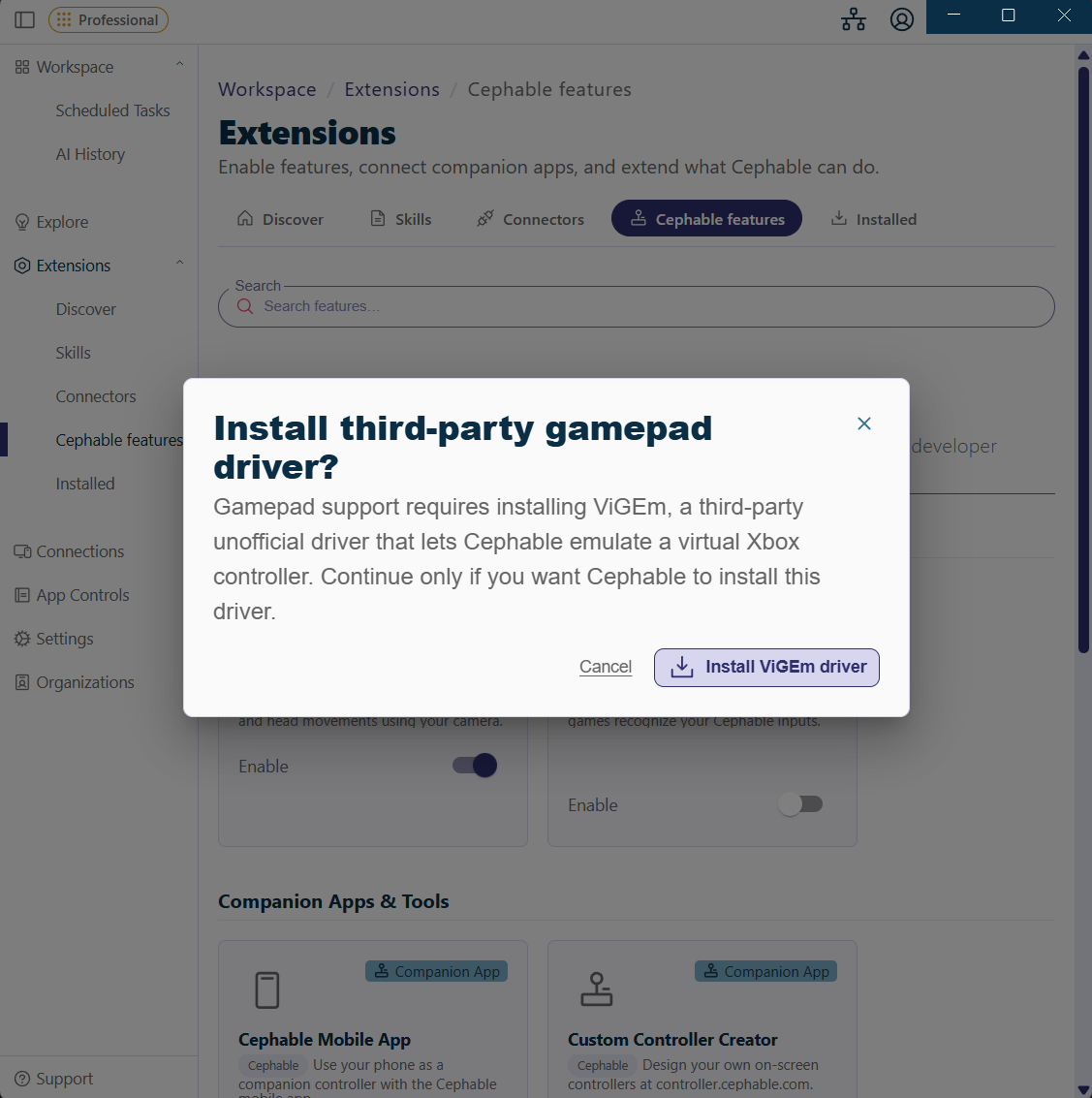
Gamepad support is an extension. Open Extensions → Gamepad Support and enable it.
Gamepad support requires ViGEm, a third-party unofficial driver that provides the virtual Xbox controller games see. You install it as part of enabling the extension. On a managed device you may need IT approval for the driver.
Building a controller set
Create App Controls with a controller type — Gamepad Controller, or Keyboard, Mouse, and Controller if you want both. Cephable can emulate generic, Xbox, PlayStation, and Nintendo Switch style controllers.
Then map each button and stick to whichever input suits you:
| Controller input | Works well with | Why |
|---|---|---|
| Left stick | Head movement | Continuous movement without holding anything |
| Right stick | Head movement or a switch | Camera control |
| Face buttons | Expressions or switches | The ones you press most |
| Bumpers / triggers | Eyebrow raise | Reliable and rarely accidental |
| Menu / start | Voice command | Not time-critical, so latency does not matter |
Work out which button you press hundreds of times an hour and map it to your least tiring input. Everything else can be harder to reach.
Joystick movement in macros
Macros include a Joystick move step for both sticks, so a single trigger can produce a stick movement rather than a button press — useful for a repeatable turn or a fixed movement.
Watch it in practice
Games with their own accessibility options
Before building an elaborate mapping, check what the game already offers — hold-to-toggle, aim assist, remappable controls, reduced-input modes. Combining the game's own options with Cephable usually beats either alone.
Building Cephable into a game
If you make games and want Cephable's adaptive input available to your players directly, that is a developer integration — see the developer documentation.
Related
Additional features
Extensions add optional features to Cephable — camera controls, gamepad support, companion apps, preview features, and integrations with other software.
Camera controls
Turn on camera controls to use head movements and facial expressions as inputs, and to move the pointer with your head.
App Controls
App Controls are the sets of commands Cephable listens for. Build them per app, switch automatically, and share them.