
Welcome to Cephable
Start with voice on Basic, explore Create as you upgrade, and put Automate, voice, and dictation to work on Pro.
Cephable helps you control your computer by voice, create text where you work, and automate multi-step jobs. Use it alongside your mouse and keyboard to handle everyday tasks.
Start with your plan
On Basic, start with voice commands. Set up commands for the actions you repeat. Basic also includes dictation. When you want to do more, explore Create: Plus adds AI-powered generation, rewriting, and translation. Pro adds Automate for multi-step work.
On Pro, start with Automate. Describe a job across your apps and files, then use voice commands for everyday actions and dictation to write text by speaking.
Control, Create, Automate
Cephable is organized around three things, and you will see the same three words on the Workspace, on the Panel's tabs, and on cephable.com.
Run the commands in your App Controls — by voice, keyboard shortcut, or quick action button — in whatever app you are using.
Draft, rewrite, reformat, and translate, right inside the app you are working in.
Describe a job in plain language and Cephable carries it out across your apps, your files, even your command line.
Extend is the fourth piece: skills, connectors, and companion apps you add through Extensions.
Where you work: the Workspace and the Panel
Cephable has two windows, and you will use both from day one.
The Workspace is the main window and your home base. It shows suggested prompts, your recent AI history, and scheduled tasks, and it is where you manage your App Controls, Extensions, and settings.
The Panel is the compact window that stays on screen beside whatever app you are using. It is where you work in the moment: type or speak a request, tap a control, start an automation, and watch it run. Clicking any card on the Workspace opens it, and so does saying "show panel".
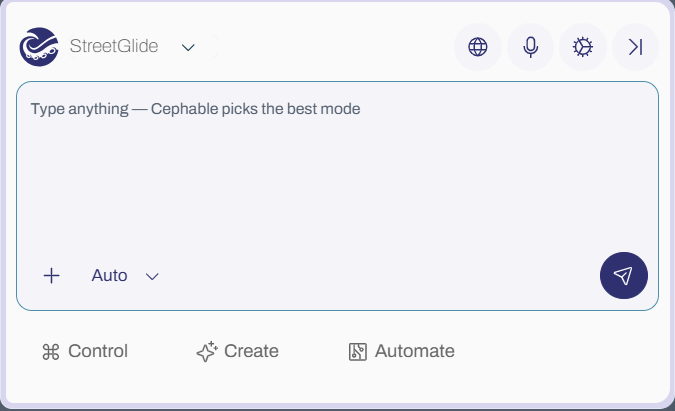
Two more terms you will see throughout these docs:
| Term | What it is |
|---|---|
| App Controls | A set of commands Cephable listens for, usually one set per application |
| Extensions | Optional features, skills, and connectors you turn on when you need them |
The Workspace and the Panel covers both windows in detail.
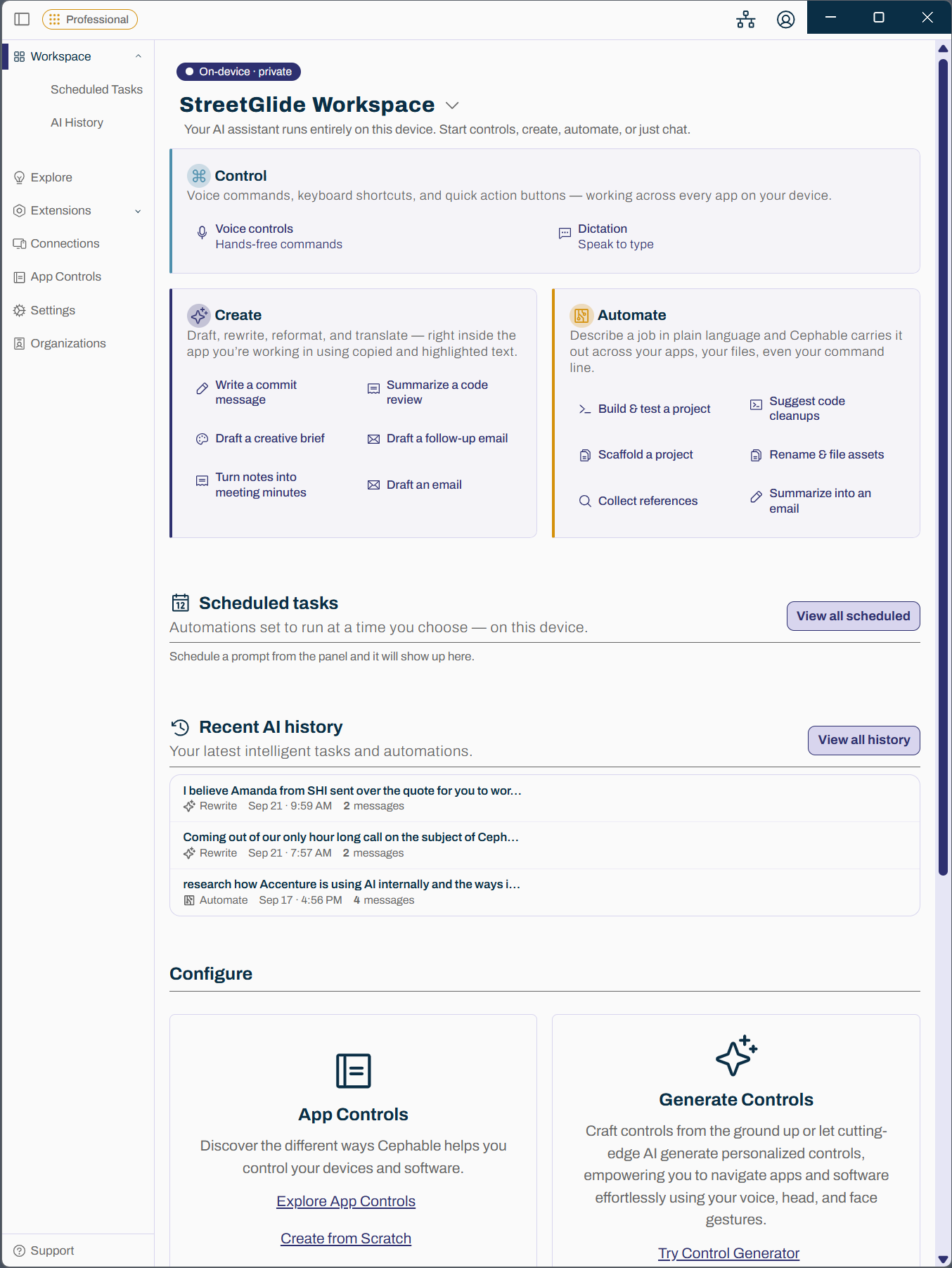
It runs on your device
Cephable's speech recognition and AI assistant run on your computer. Your microphone audio stays on the device, and voice controls keep working with no network connection.
Because nothing is streamed to an external service, Cephable can often be approved where cloud-based voice assistants cannot. If you are making that case to your IT or security team, Privacy and security is written for them.
See it working
Where to go next
- 1
Install the app
Install Cephable and grant microphone access for voice commands. Install the desktop app.
- 2
Set up your first App Controls
Start with one application you use constantly and three actions you repeat. Your first App Controls.
- 3
Which plan you are on
Some capabilities need a paid plan. Sections that do are marked with a plan badge throughout these docs, and signing in unlocks the ones your license includes. Plans and licenses has the detail.
Related
The Workspace and the Panel
The Workspace is your home base for status, suggested prompts, and settings. The Panel is where you prompt, run controls, and start automations as you work.
Install the desktop app
Download Cephable, sign in, download the AI model, and grant the permissions it needs on Windows and macOS.
Your first App Controls
Build a set of controls for one app you use constantly, with three actions you repeat every day.