
Voice commands
Say a phrase and Cephable acts. How commands are matched, and the settings that make recognition reliable.
Control is the first of Cephable's three modes: you send commands to the app you are using. Those commands live in your App Controls — the sets that tell Cephable what to listen for and what to do, usually one set per app — and Cephable switches to the right set as you move between apps.
This page covers running them by voice. You say a phrase, Cephable matches it against your active App Controls, and it runs the action attached to it — a keystroke, a click, a macro.
Recognition happens on your device. Nothing is streamed anywhere.
Starting
Click Voice controls on the Workspace, or use the microphone toggle in the Panel header. The Panel shows what Cephable heard and what it did with it, and you can pause listening without stopping the microphone entirely.
Speaking versus commanding
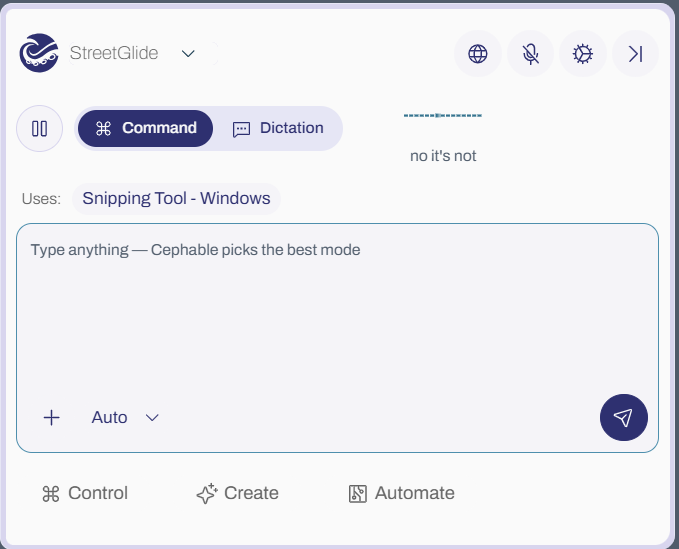
The Panel's composer decides what your voice does. On Auto — the default — a phrase that matches one of your controls fires that control, and anything else becomes a Create or Automate task. Set the mode to Control explicitly if you only ever want commands.
The full mode list is on The Workspace and the Panel.
Making recognition reliable
Accuracy depends more on phrasing than on your microphone.
- 1
Pick the right microphone
Cephable lists the microphones it can see. Choose your headset explicitly rather than relying on the system default, which changes when you plug things in.
- 2
Use two or three syllable phrases
Single syllables are the hardest to match. "Go" is unreliable; "go back" is not.
- 3
Keep phrases distinct from each other
Read your control list out loud. If two entries sound similar to you, they will to the recognizer too.
Optimistic Faster Voice Controls
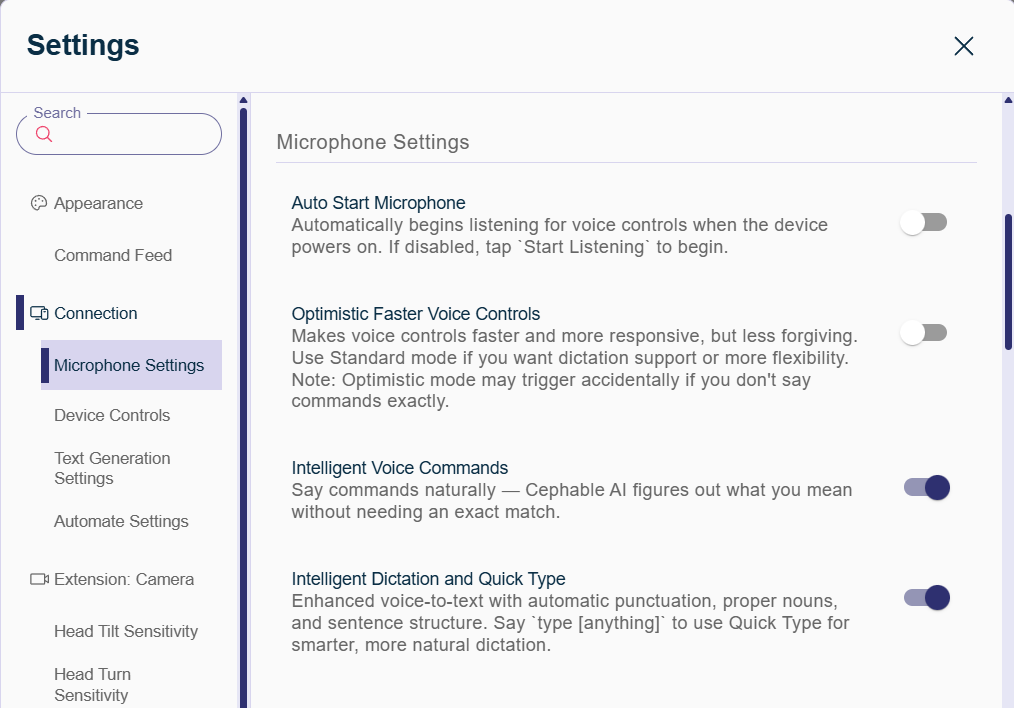
This setting makes voice controls faster and more responsive, but less forgiving. Turn it off if you want steadier recognition, particularly when you mix commands with dictation.
Intelligent Voice Commands
Cephable Plus unlocks this section
Intelligent Voice Commands let you say commands naturally — Cephable's on-device AI works out what you meant instead of requiring an exact phrase match. Included with Cephable Plus and above.
Included with Plus, Pro, Education, SDK.
Talkback
Talkback controls make Cephable speak a phrase out loud when triggered. They are configured alongside your other controls — useful for AAC-style setups where a control should produce speech rather than a keystroke.
Dictating rather than commanding
Commands and dictation compete for the same words, which is why dictation is its own mode. See Create.
Getting the most out of voice
Four things make the biggest difference, roughly in order of impact:
- 1
Get the microphone close
Position beats hardware. A microphone near your mouth outperforms an expensive one across the room, and a headset beats a laptop's built-in array.
- 2
Turn on Voice Focus if you are on Windows 11
Windows 11 has a Voice Focus microphone setting that cuts background noise. It is in your operating system's microphone settings, not Cephable's.
- 3
Write phrases you would not say by accident
Two or three syllables, distinct from each other, and unlike your normal speech. "Next" fires constantly in conversation; "go next" almost never does.
- 4
Put commands you want everywhere in Global Controls
Global Controls work in every app, whichever App Controls are active, so you do not need to repeat the same command in each set.
Common questions
Cephable says my command ran, but nothing happened.
Almost always focus. Cephable sends input to whichever app is active, exactly like a keyboard — so if the app you meant is not focused, or the action is not available on the screen you are on, the command fires and lands nowhere.
Check the right app is active and the action is available, then look for a conflict banner in Cephable.
How do I stop commands firing while I am in a meeting?
Pause voice controls rather than stopping the microphone. Pausing leaves everything loaded, so resuming is one click — stopping means waiting for it to start up again.
Can I use natural phrasing instead of exact commands?
Yes, with Intelligent Voice Commands — see the section above. It needs Cephable Plus or higher, and it means a control named "bold text" still responds when you say "make that bold".
Why does it mishear one particular command every time?
Read your control list out loud. If two entries sound alike to you, they will to the recognizer — rename one.
If it is unique and still missed, lengthen it. Short commands are the least reliable thing you can write.
Troubleshooting
If Cephable is not responding, work through Voice recognition problems.
Related
Your first App Controls
Build a set of controls for one app you use constantly, with three actions you repeat every day.
App Controls
App Controls are the sets of commands Cephable listens for. Build them per app, switch automatically, and share them.
Cephable on mobile
The iOS and Android apps act as a companion controller for a device running Cephable.