
Camera controls
Turn on camera controls to use head movements and facial expressions as inputs, and to move the pointer with your head.
Camera controls let you use head movements and facial expressions as inputs, and move the mouse pointer with your head. Everything is processed on your device — the camera feed is analyzed locally and is never recorded or transmitted.
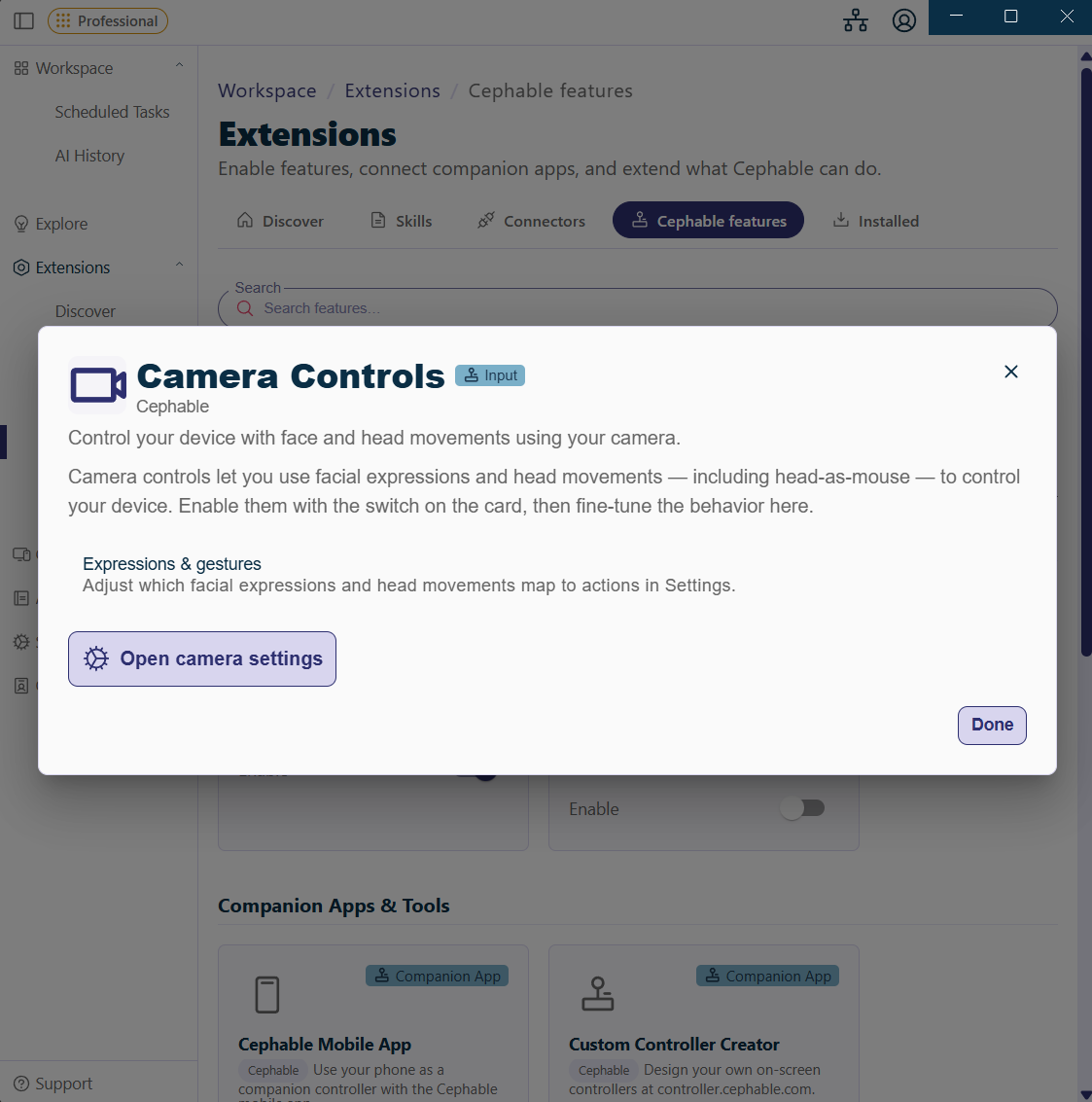
Turn camera controls on
Camera controls are an extension, so they stay off until you turn them on. In the Cephable Workspace, use either route:
- From the home page: under Control, click Camera controls. Cephable opens the Panel and starts the camera. This card appears once the extension is on.
- From Extensions: open Extensions → Cephable features and turn Enable on for Camera Controls. Then click the camera icon at the top of the Cephable Panel.
After that, the camera icon at the top of the Panel starts and stops the camera.
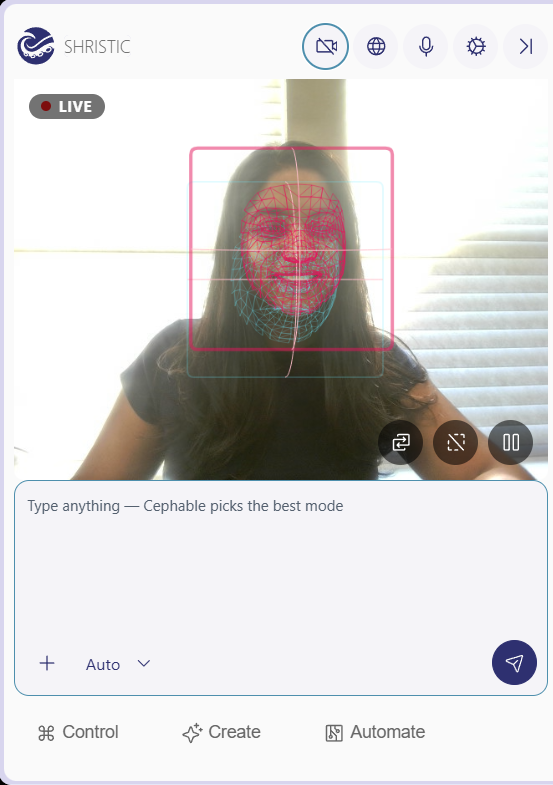
The camera picture appears inside the Panel with a LIVE badge, and Cephable briefly shows Detected: and the control's name each time one fires. The buttons at the bottom right of the picture update your baseline, turn Face Lines (the tracking overlay) on or off, and pause camera controls without stopping the camera. Move the pointer over the picture if you cannot see them.
Movements and expressions you can map
These are the inputs Cephable detects. Each one is mapped to an action inside your App Controls, and each has its own sensitivity.
| Group | Inputs |
|---|---|
| Head tilt | Up, down, left, right |
| Head turn | Left, right |
| Head lean | Forward, back, left, right |
| Head duck / rise | Down, up |
| Eyebrow | Raise |
| Mouth | Open, close, smile |
Every input has a sensitivity value rather than a simple toggle. Sensitivity tells Cephable how far you need to move, or how exaggerated an expression needs to be, before it counts as a control. Higher values mean a smaller movement triggers the control; lower values need a bigger movement.
Set your baseline
The baseline is your resting head and face position. Cephable measures movement relative to it, so getting it right matters more than any other setting.
- 1
Sit the way you normally sit
Use your usual posture and headrest. A baseline captured while sitting unusually upright will not match how you actually work.
- 2
Update the baseline
While resting naturally, click the baseline button on the camera picture in the Panel. Baseline Updated confirms it. Cephable also sets a baseline from the first face it sees each time the camera starts.
- 3
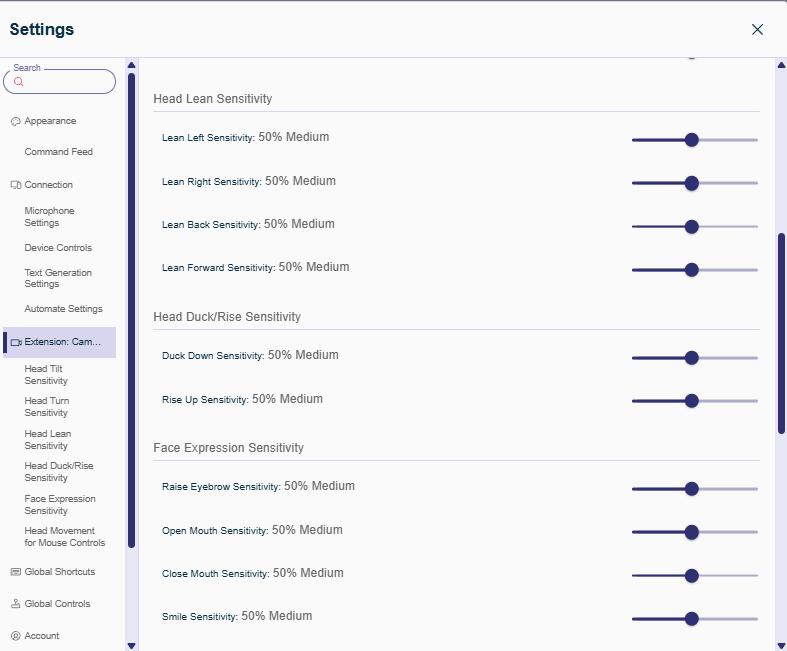
Adjust sensitivity per input
In Settings → Extension: Camera, drag the slider left for movements that trigger accidentally, and right for movements you find tiring to reach.
Moving the mouse with your head
Head movement can drive the pointer instead of triggering other controls. In Settings → Extension: Camera → Head Movement for Mouse Controls, choose a Mouse Move Mode.
| Mouse move mode | How it behaves |
|---|---|
| Off | Head movement does not move the pointer |
| Steady Glide | Past a threshold, the pointer glides continuously |
| Speed Boost | The longer you hold a position, the faster it moves |
| Dynamic Glide | Speed increases with how far you move your head |
Supporting settings: Mouse Input Type (which gestures drive the pointer), Invert X/Y, Linear Mouse Movement (horizontal and vertical only), Mouse Speed, Maximum Mouse Speed, Mouse Acceleration Response Delay, and Mouse Acceleration Curve.
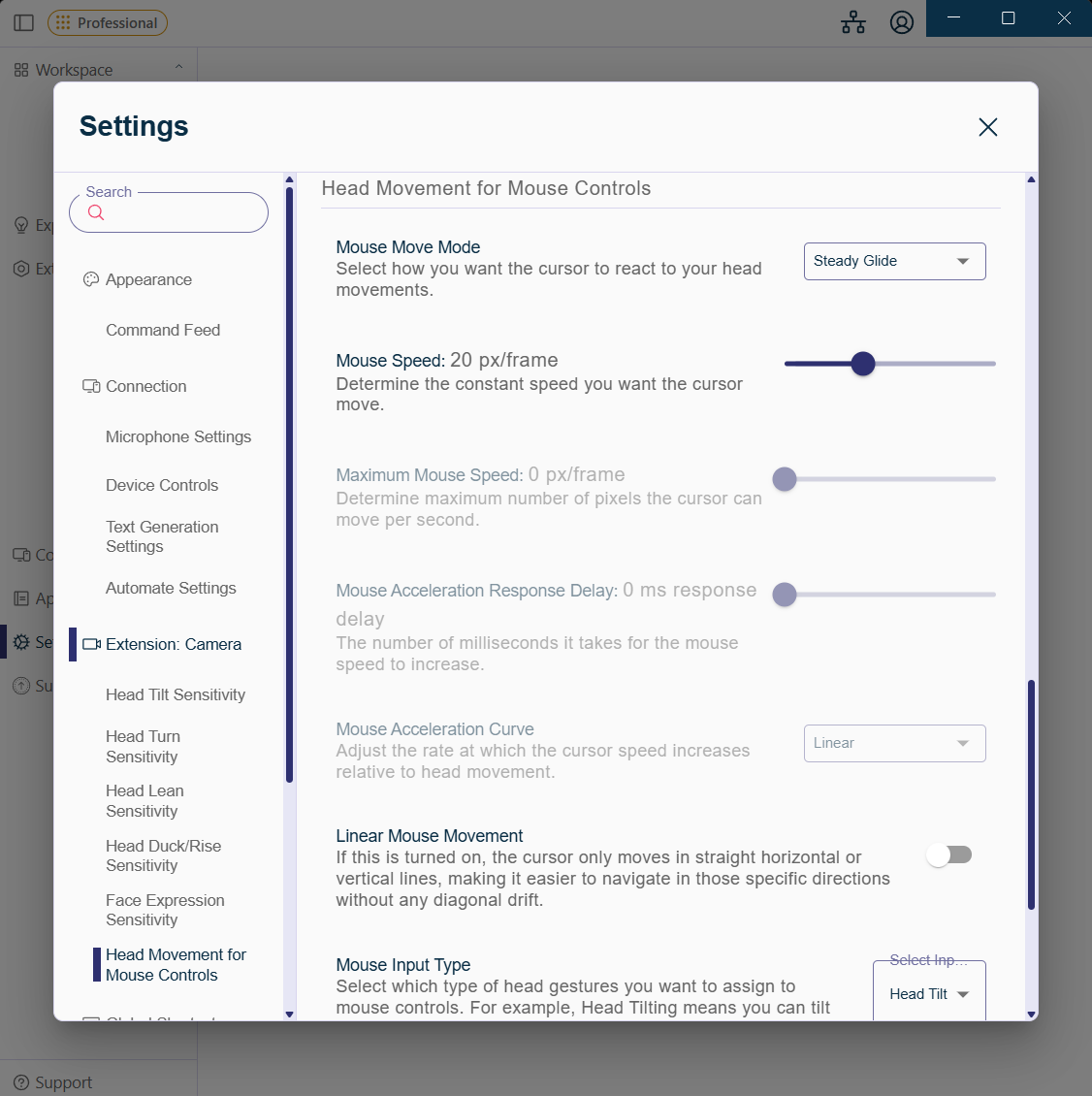
If the pointer feels twitchy, lower Mouse Speed — and Maximum Mouse Speed, in Speed Boost or Dynamic Glide — before changing anything else. An unsteady pointer is far more tiring than a slightly slow one.
Lighting and camera placement
Tracking quality depends more on lighting than on camera quality.
- Light your face rather than your back. A bright window behind you is the most common cause of poor tracking.
- Put the camera at or slightly above eye level.
- Avoid strong side lighting, which makes expression detection uneven.
If the camera cannot find your face, Cephable tells you directly — No Face Detected. Please adjust your camera or position and try again.
More than one camera
With the camera on, click the gear icon at the top of the Panel and choose a camera from the Camera list. When more than one camera is connected, a switch button on the camera picture also moves to the next one. Cephable remembers your choice.
Common questions
Why is my camera slow to start the first time?
The first start downloads the machine learning models. They are kept offline after that, so every later start is much faster.
Can I change how much I have to move to trigger a control?
Yes — each movement and expression has its own sensitivity, so you can tune them individually.
Set your baseline first though. Sensitivity is relative to your resting position, so a stale baseline makes every threshold feel wrong.
Cephable cannot find my camera.
Close any other app using the camera, check permission is granted, and check for a sliding webcam cover. Then turn the camera off and on again with the camera icon at the top of the Panel.
Camera and tracking problems has the full steps.
My expressions fire while I am talking.
Speech moves your mouth and eyebrows constantly, so tune those thresholds while talking, not in silence.
Better still, use head movements rather than mouth expressions for anything you rely on during a conversation, and pause camera controls for the duration of a call.
Next
- App Controls — map these inputs to actions
- Camera and tracking problems
Related
Gamepad support and gaming
Emulate an Xbox controller so games recognize your Cephable inputs, and map controller buttons to voice, head, and face.
Additional features
Extensions add optional features to Cephable — camera controls, gamepad support, companion apps, preview features, and integrations with other software.
Camera and tracking problems
Fix a camera that will not start, a face Cephable cannot see, and head or face controls that trigger when they should not.