
App Controls
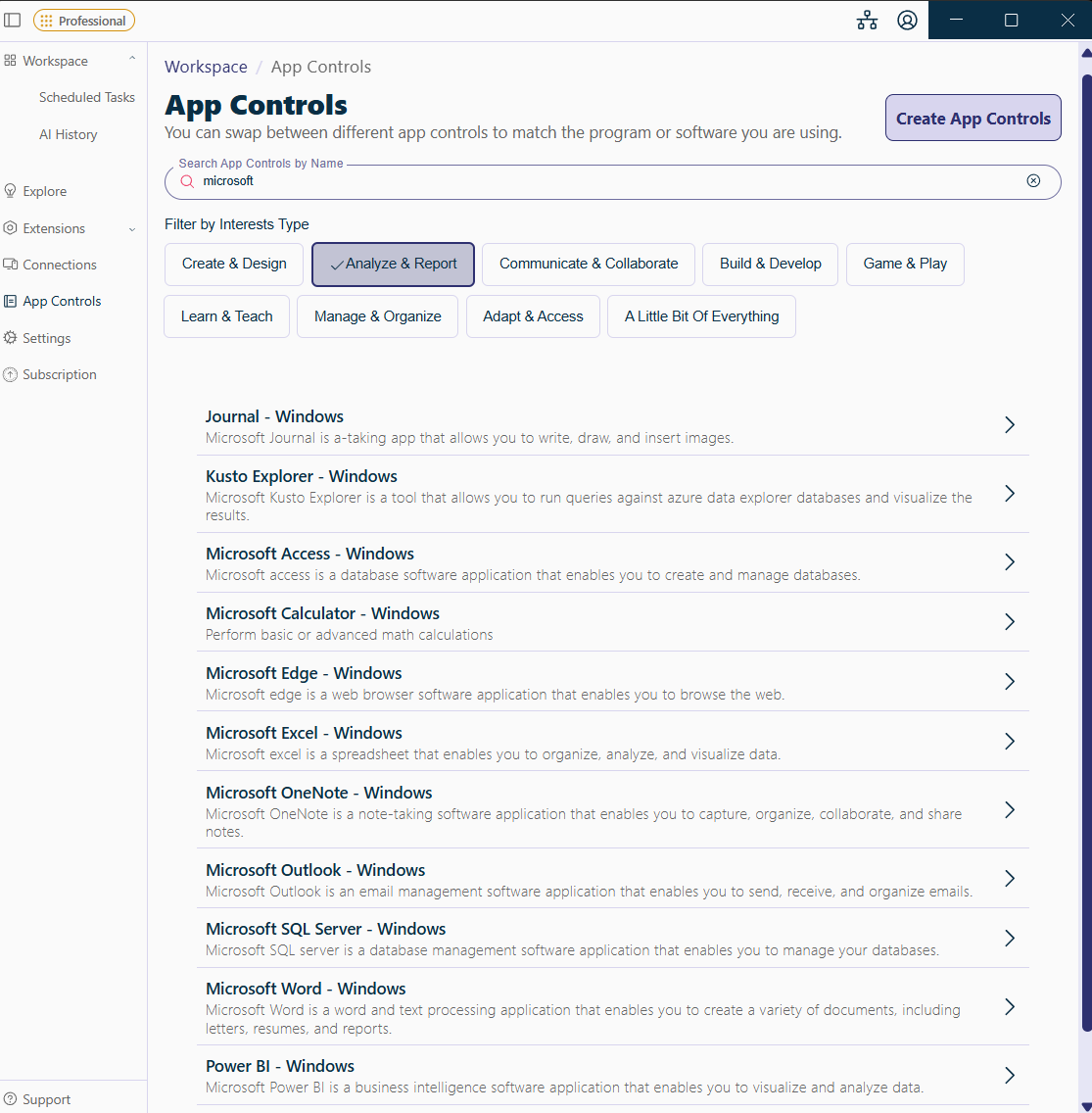
App Controls are the sets of commands Cephable listens for. Build them per app, switch automatically, and share them.
App Controls are how Cephable knows what to listen for and what to do about it. Each set holds voice commands, expression and head mappings, quick action buttons, macros, and dictation settings for one context.
Creating a set
From Manage App Controls, choose Create App Controls. You can start from scratch or have Cephable generate a starting set for you.
Each set has a type, which determines what it can emit:
| Type | Emits |
|---|---|
| Keyboard and Mouse | Keystrokes, clicks, pointer movement |
| Gamepad Controller | Virtual controller input |
| Keyboard, Mouse, and Controller | Both |
| Custom device | Actions defined by a connected device type |
What a control can do
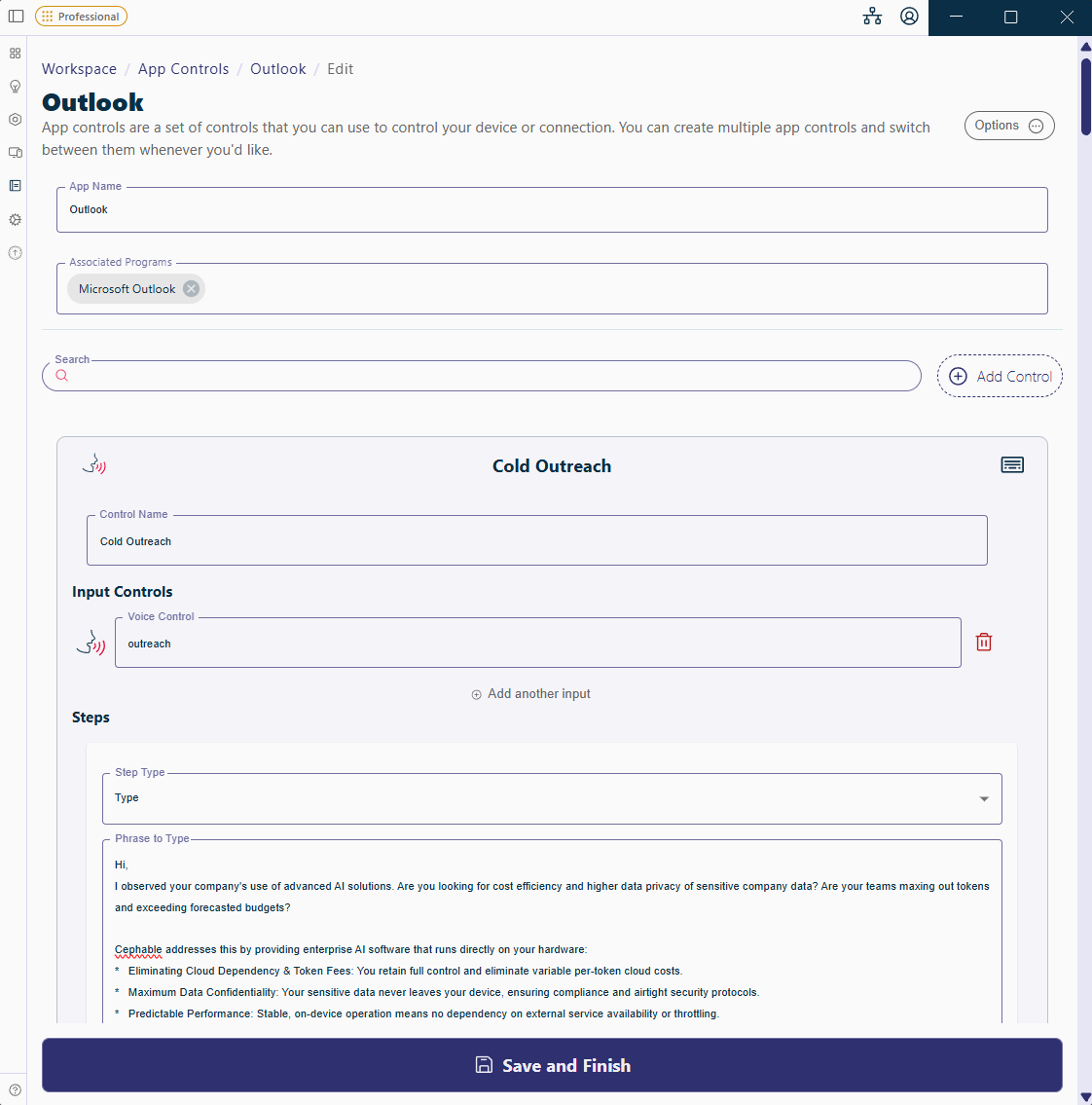
A control pairs a trigger — a spoken phrase, an expression, a head movement, a quick action button — with one or more actions:
| Action | Notes |
|---|---|
| Key press | Hold time and latching supported |
| Key release / key toggle | For held or sticky keys |
| Type | Inserts a phrase |
| Mouse move | Relative pointer movement |
| Joystick move | Left and right stick |
| Play audio | Plays a sound |
| Talkback | Cephable speaks a phrase |
| Pause | A delay between steps |
| Stop outputs | Releases everything currently held |
Macros
A macro chains those actions in sequence — keystrokes, pauses, typed text, mouse and joystick movement, audio. "Start my day" opening three apps in order is a macro.
Add a Pause step after anything that takes a moment to respond, so the next keystroke does not arrive before the window is ready.
Quick action buttons
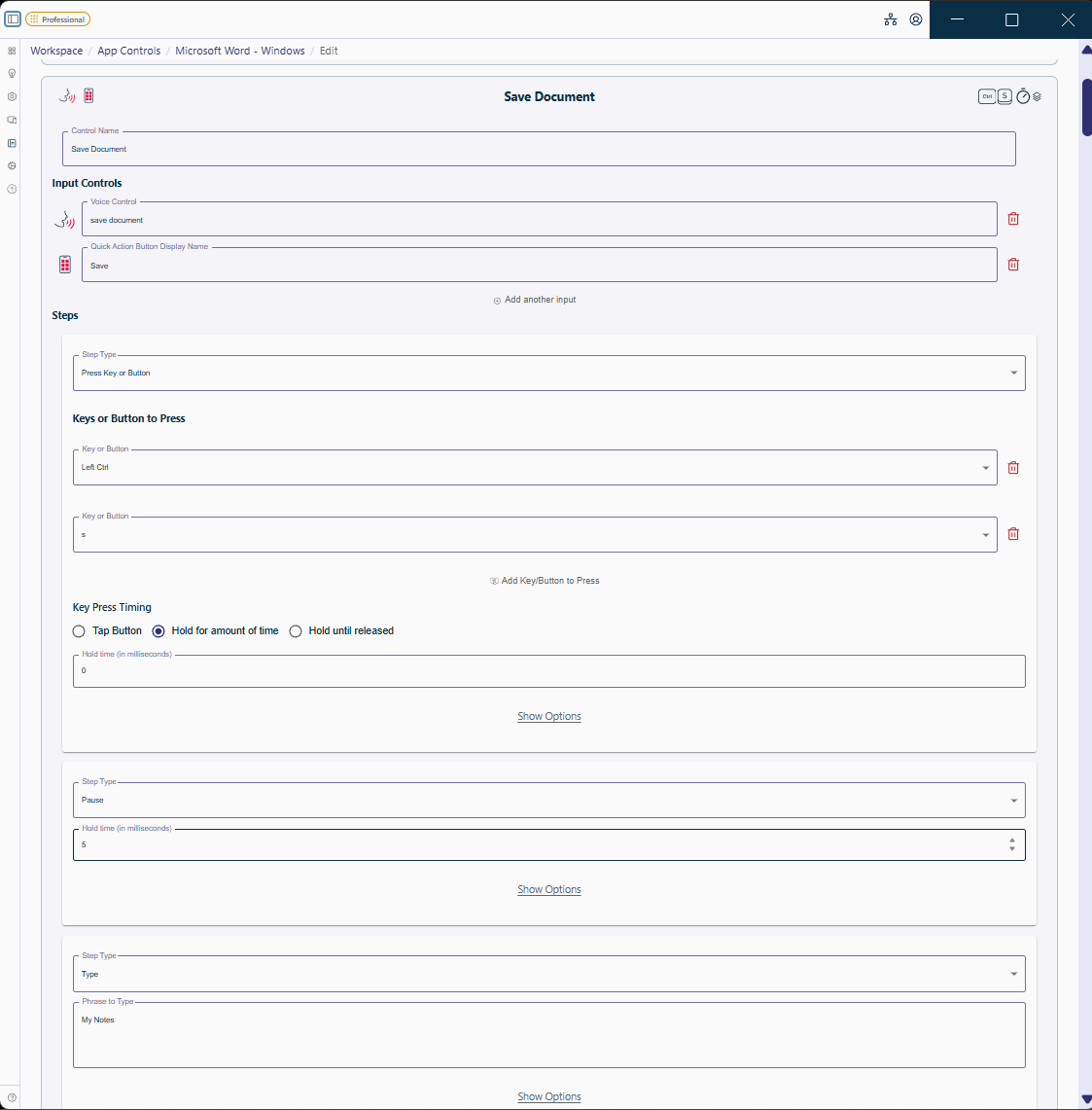
Quick action buttons are tappable buttons for the actions you use most. A single tap runs the control, which makes them reachable by pointer, touch, or switch as well as by voice. They appear on the Panel's Control tab and on the mobile app when a device is connected.
You can reorder them with the move up and down buttons.
Switching automatically
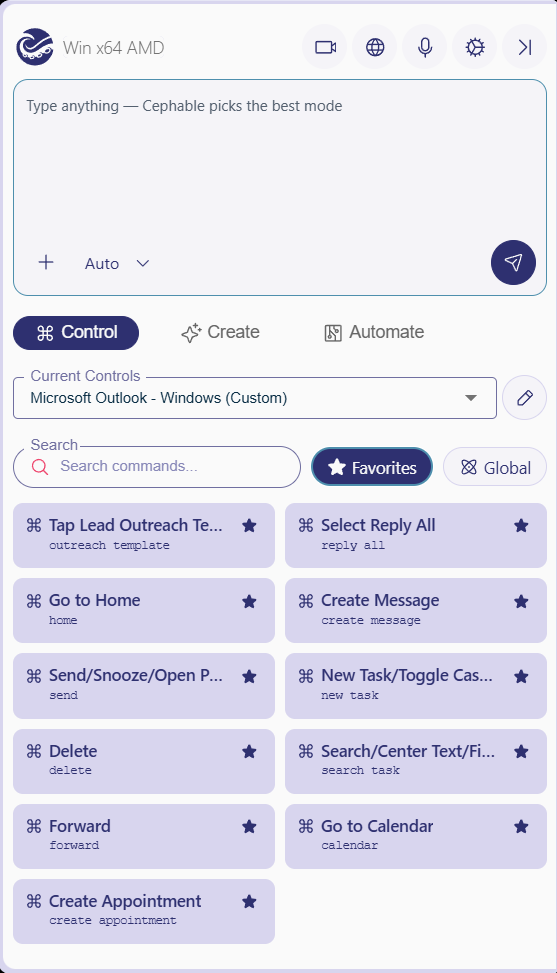
Each set of App Controls can be linked to one or more programs under Associated Programs. With Automatic Control Switching on, Cephable switches to that set whenever one of those applications comes to the foreground. The set stays active until you move to another app that has its own App Controls, or until you change sets yourself with Swap Controls.
Global & Device Controls work no matter which App Controls are active. Cephable includes some already, like "show panel" and "open" followed by an app name. To have one of your own commands everywhere, add it to Global Controls instead of repeating it in every set. If a global control and an app control share a phrase, the app control wins.
Sharing
Create a Share Link produces a link others can use to take a copy. You choose whether it can be used once or an unlimited number of times. Nothing about your account travels with it — the recipient gets a copy they can edit freely.
There is also a public gallery of App Controls built by the Cephable team and community, which you can copy from and adapt.
Next
Related
The Workspace and the Panel
The Workspace is your home base for status, suggested prompts, and settings. The Panel is where you prompt, run controls, and start automations as you work.
Voice commands
Say a phrase and Cephable acts. How commands are matched, and the settings that make recognition reliable.
Cephable on mobile
The iOS and Android apps act as a companion controller for a device running Cephable.