
The Workspace and the Panel
The Workspace is your home base for status, suggested prompts, and settings. The Panel is where you prompt, run controls, and start automations as you work.
Cephable has two windows, and each has its own job.
The Workspace is the main Cephable window — your home base. It shows your status, such as which device you are controlling and that the assistant is running on this device. It suggests prompts to try, keeps your recent AI history and scheduled tasks, and is where you customize Cephable: your App Controls, Extensions, and settings, including the advanced ones.
The Panel is the compact window you work from in the moment. It stays on screen beside whatever app you are using, so you can type or speak a request, run a control, or start an automation and follow its progress without leaving what you are doing.
Both are organized the same way: Control, Create, and Automate.
Control, Create, Automate
| What it is | |
|---|---|
| Control | Run the commands in your App Controls — by voice, keyboard shortcut, or quick action button — in whatever app you are using |
| Create | Draft, rewrite, reformat, and translate, right inside the app you are working in |
| Automate | Describe a job in plain language and Cephable carries it out across your apps, your files, even your command line |
You will see the same three names on the Workspace, on the Panel's tabs, and on cephable.com.
The Workspace
The Workspace opens with a row of cards under each heading. Clicking one opens the Panel, switches it to that mode, and — for Create and Automate — puts a starting prompt in the composer for you to edit before running.
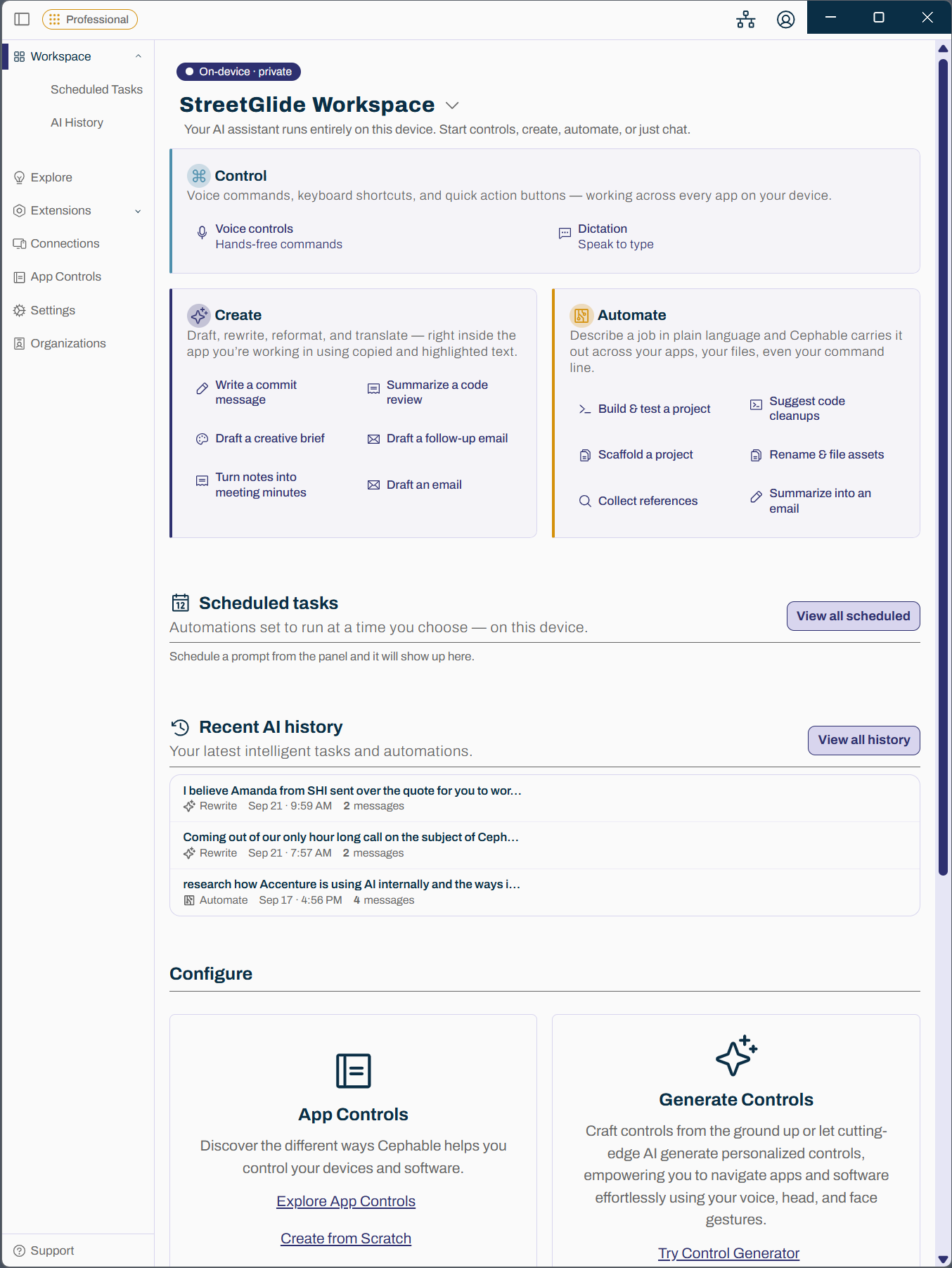
Control cards start a control surface rather than filling in a prompt:
| Card | Starts |
|---|---|
| Voice controls | Hands-free commands |
| Dictation | Speak to type |
| Quick actions | One-tap shortcuts |
| Camera controls | Face and head gestures |
Camera controls appears once you turn on the Camera extension, or while you are controlling another device. Quick actions appears while you are controlling another device — on this computer, the Panel's Control tab already shows your controls as buttons.
Create and Automate cards are tailored to the interests you picked during onboarding, so someone who said they mostly write sees different starting points from someone who mostly codes. Each shows four suggestions at a time and moves on to the next few every several seconds; it holds still while you hover over it. Choose View more to open All suggestions, with every starting point, yours first. Pick one and it drops into the composer so you can edit it before running.
The Workspace also shows Recent AI history and Scheduled tasks, so you can pick up what you were doing or see what is due to run.
The Panel
The Panel stays on screen while you work. It has a composer — one box you type or speak into — and three tabs. Open it from any Workspace card, or say "show panel".
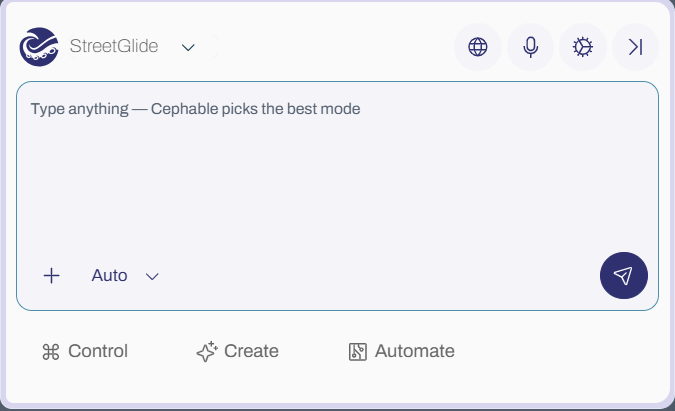
| Tab | What you get |
|---|---|
| Control | Your active App Controls as buttons you can tap, with Favorites and Global filters |
| Create | The composer in a Create mode, working on your selection or clipboard |
| Automate | The composer in Automate mode, plus running automation status |
The Panel can dock to the top, right, bottom, or left of your screen, auto-hide after a delay, and be sized to suit. Voice and camera have their own toggle buttons in the Panel header, so you can start listening or start the camera from wherever you are.
Composer modes
The composer's mode decides what your input does. Auto is the default and picks for you.
| Mode | What it does |
|---|---|
| Auto | Decides for you — a matching control runs as a control, otherwise Create or Automate |
| Control | Runs a command from your App Controls |
| Generate | Writes new text |
| Summarize | Summarizes your selection |
| Rewrite | Rewrites your selection |
| Translate | Translates your selection |
| Automate | Describes a multi-step job for the assistant to carry out |
Rewrite and Translate need something to work on, so they ask you to choose a context source — highlighted text, the clipboard, or the current app — before they will run.
Most people never leave Auto. Say or type what you want and Cephable routes it: a phrase that matches one of your controls fires the control, and anything else becomes a Create or Automate task.
With Cephable Pro, typed requests that match no control and are not a Create request become an automation. A spoken request becomes an automation only when you start with "automate" — "automate sorting my downloads folder" — so stray speech never kicks off a multi-step job. Saying "open" with a short app name just opens the app; a longer request, like "open Zoom and start my meeting", runs as an automation.
The command feed
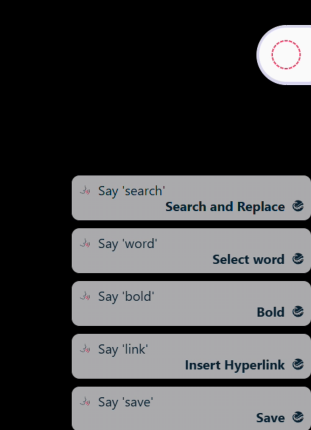
The command feed is a separate overlay showing the controls you use and what was sent to your computer. It is useful while learning a new set of controls, and while figuring out why one is not behaving. You can place it in any of six positions and set its transparency.
Starting with your computer
Automatically Start Cephable launches the app when you sign in. The Panel, microphone, and camera each have their own auto-start settings, so the app can be running quietly with nothing listening until you ask for it.
Related
Welcome to Cephable
Start with voice on Basic, explore Create as you upgrade, and put Automate, voice, and dictation to work on Pro.
App Controls
App Controls are the sets of commands Cephable listens for. Build them per app, switch automatically, and share them.
Install the desktop app
Download Cephable, sign in, download the AI model, and grant the permissions it needs on Windows and macOS.