
Install the desktop app
Download Cephable, sign in, download the AI model, and grant the permissions it needs on Windows and macOS.
Installing takes about ten minutes, and most of that is granting the microphone and accessibility permissions your operating system asks for. On Plus and Pro, allow extra time for the AI model to download.
- 1
Download
Get the installer for your computer from cephable.com/downloads.
- 2
Install and launch
Run the installer you downloaded and follow its prompts, then launch Cephable.
Double-click the downloaded
.dmgfile to open it, then drag Cephable into your Applications folder. Launch Cephable from Applications rather than from the open disk image. - 3
Sign in
Enter your email address and choose Continue, then sign in with your password or choose Sign In with Magic Link to have a link emailed to you. No account yet? Choose Sign Up.
If your employer or school provides Cephable, choose Sign in with Corporate account (SSO) on that screen instead of entering a password. It takes you to your organization's own sign-in page. Ways to sign in below covers each option.
- 4
Download the AI model (Plus and Pro)
On Plus and Pro, Cephable asks to Download AI Models to Unlock More Capabilities. Choose Download. Cephable picks the recommended model for your computer, and Create and Automate both use it. The model runs on your device, so your data stays private.
Stick with that one model to start. You can download others later under Settings → Text Generation Settings → AI Model, but larger models take more disk space and memory, and the recommended one is the right fit for most computers.
- 5
Grant permissions as you go
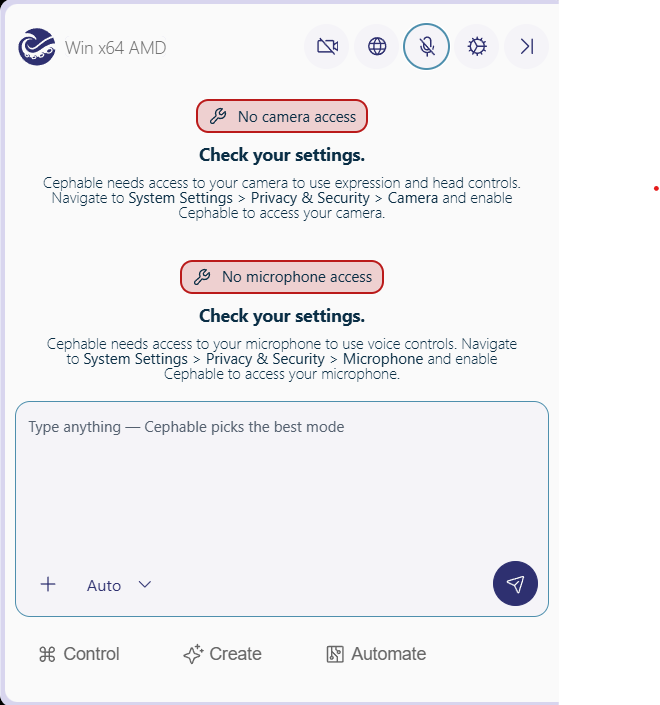
Cephable asks for each permission at the point you first use the feature that needs it, and gives you a button that opens the right settings page.
Ways to sign in
One account covers the desktop app, the mobile apps, the Cephable Portal, and these docs.
Email address and password. Available to every account.
Choose Sign In with Magic Link and we email you a link. Clicking it signs you in with no password to remember.
If your organization has set up single sign-on, choose Sign in with Corporate account (SSO) and enter your work email. You sign in on your organization's own page.
You can also connect a Google, Microsoft, or Apple account in Settings → Account → Connected accounts and sign in with it afterwards.
Trouble signing in? Sign-in problems covers expired magic links and work email addresses that are not recognized.
Permissions
| Permission | Needed for | Required? |
|---|---|---|
| Microphone | Voice commands and dictation | Only if you want voice |
| Camera | Head and face controls | Only if you want camera input |
| Device Control and Data Access (macOS) | Sending input to other applications | Yes — Cephable cannot act without it |
On macOS 26 and earlier this permission is called Accessibility. Apple renamed it in macOS 27 — same setting, same place, new label.
Without it Cephable can hear you but cannot do anything. If commands are recognized and nothing happens, that is almost always the cause. Look under System Settings → Privacy & Security → Device Control and Data Access, or Accessibility if you are on macOS 26 or earlier — see Permissions and access.
Check it is working
On the Workspace, click Voice controls under Control. Say a command from your active App Controls. The Panel shows what it heard, and the command feed shows what it sent to your computer.
If the microphone meter moves but nothing happens, the permissions above are the place to look.
Starting automatically
Automatically Start Cephable launches the app when you sign in to your device. The Panel, microphone, and camera each have their own auto-start settings, so the app can be running quietly with nothing listening until you ask for it.
Installing for other people
If you are deploying Cephable across an organization rather than installing it for yourself, start with the deployment overview — the order of operations matters, and identity comes before installation.
Next
Related
Welcome to Cephable
Start with voice on Basic, explore Create as you upgrade, and put Automate, voice, and dictation to work on Pro.
The Workspace and the Panel
The Workspace is your home base for status, suggested prompts, and settings. The Panel is where you prompt, run controls, and start automations as you work.
Your first App Controls
Build a set of controls for one app you use constantly, with three actions you repeat every day.