
Camera and tracking problems
Fix a camera that will not start, a face Cephable cannot see, and head or face controls that trigger when they should not.
Camera controls run inside the Cephable Panel, the window you use to control Cephable. Every fix on this page starts there.
Press Alt+P on Windows or Option+P on a Mac. Or use the Cephable icon: right-click it in the system tray at the bottom right of the screen on Windows (it may be hidden under the ^ arrow), or click it in the menu bar at the top right on a Mac. Then choose Toggle Panel.
Turn the camera on
Camera Controls is an extension, so it stays off until you turn it on. Open the Cephable Workspace first: right-click the Cephable icon in the system tray (Windows) or click it in the menu bar (Mac), and choose Show Workspace. Then use either route.
From the Workspace home page
- Choose Workspace at the top of the sidebar.
- Under Control, click Camera controls. Cephable opens the Panel and starts the camera.
From Extensions — use this if there is no Camera controls card on the home page
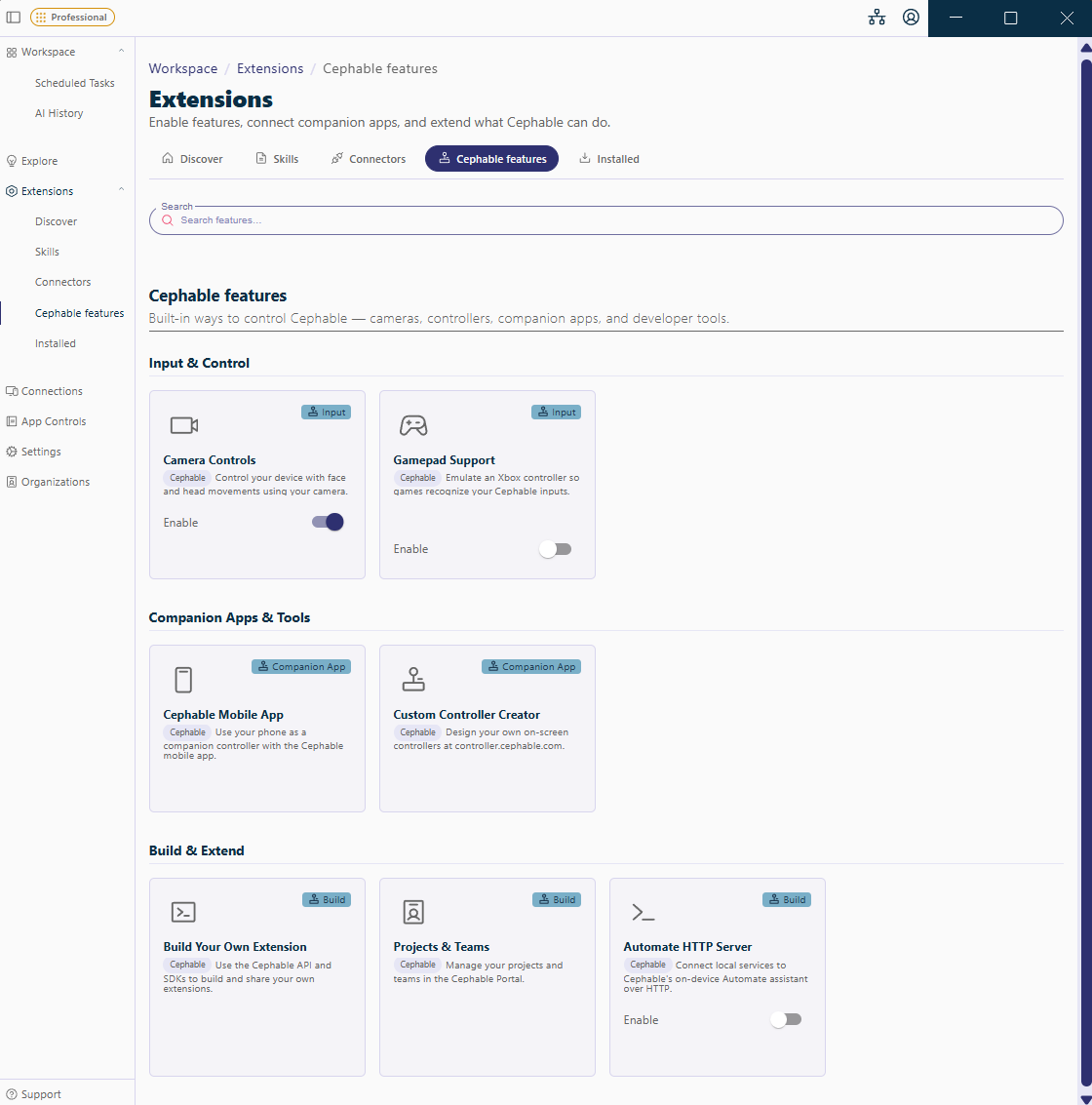
- In the sidebar, choose Extensions, then Cephable features.
- On the Camera Controls card, turn the Enable switch on.
- Click the camera icon that now appears at the top of the Panel, or go back to the Workspace home page and click Camera controls.
Where the camera controls are
| To do this | Use this |
|---|---|
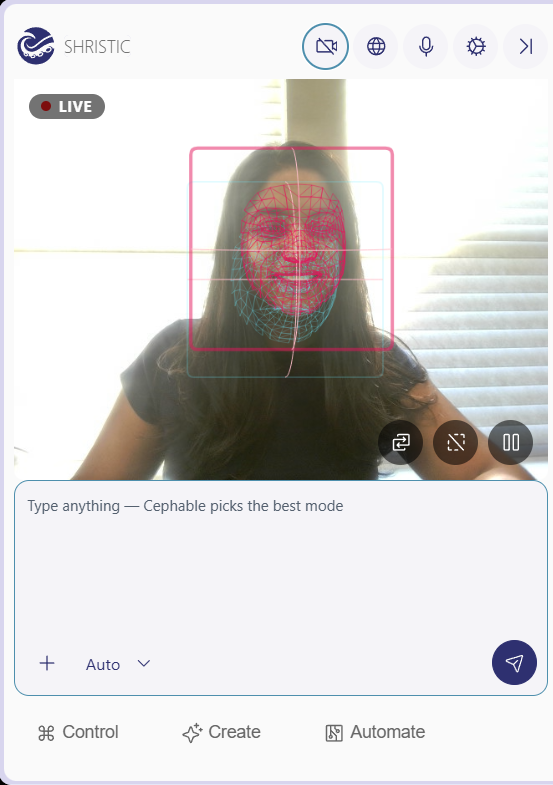
| Turn the camera on or off | The camera icon at the top of the Panel, left of the microphone. While the camera is on, the icon has a line through it. The icon only appears once Camera Controls is turned on. |
| Pause camera controls but keep the camera on | The pause button on the camera picture |
| Set your resting position (your baseline) | The baseline button on the camera picture, with two arrows. Its tooltip reads "Click to update your baseline to your current resting position." |
| Show or hide the tracking lines | The face lines button on the camera picture |
| Choose a different camera | The gear icon at the top of the Panel, then Camera. If you have more than one camera, a switch button also appears on the camera picture. |
| Change sensitivity, mouse movement, and auto-start | In the Cephable Workspace, Settings → Extension: Camera |
The buttons sit at the bottom right of the camera picture. Move the pointer over the picture if you cannot see them.
Restart the camera
When a step below says restart the camera, it means:
- Click the camera icon at the top of the Panel. The camera picture closes.
- Wait two or three seconds, then click the same icon again. The Panel shows Loading Camera Controls... while it reloads face tracking, then the picture comes back with a LIVE badge in its top-left corner.
You do not need to quit Cephable or restart your computer for this.
The camera will not start
Work through these in order. Stop as soon as the camera picture appears with a LIVE badge.
- 1
Check Camera Controls is turned on
If there is no camera icon at the top of the Panel, Camera Controls is turned off. Follow Turn the camera on above.
- 2
Start the camera
Click the camera icon at the top of the Panel, or click Camera controls on the Workspace home page. Loading Camera Controls... appears while Cephable loads face tracking, and then the camera picture appears.
The first time, Cephable downloads its face-tracking models, so make sure you are online and give it a little longer.
- 3
If you see “No camera access”
Cephable does not have permission to use your camera. Follow Allow camera access below, then restart the camera.
- 4
If it stays on “Loading Camera Controls...”
You may also see Unexpected error loading camera controls for a few seconds. Cephable could not open the camera.
- Close other apps that use the camera, such as Teams, Zoom, FaceTime, the Camera app, or a browser tab on a video call.
- Check the camera itself. Open its privacy shutter if it has one. If it is a USB camera, unplug it and plug it back in.
- Then restart the camera.
- 5
Quit and reopen Cephable
If the camera still will not start, quit Cephable fully and open it again.
In the Cephable Workspace, open Settings → Extension: Camera and turn on Autostart Camera and Head/Expression Controls?.
Allow camera access
- 1
Open the camera privacy settings
Click Open Settings under the No camera access message in the Panel. System Settings opens at Privacy & Security → Camera.
- 2
Turn Cephable on
Find Cephable in the list and turn its switch on.
- 3
Restart the camera
Back in the Panel, restart the camera. If No camera access is still showing, quit Cephable fully and open it again.
The message in the Panel says System Settings, which is the Mac name. On Windows there is no button, so go there yourself:
- 1
Open the camera privacy settings
Open Start → Settings → Privacy & security → Camera.
- 2
Turn on both switches
Camera access and Let desktop apps access your camera must both be on. The second one is further down the page and easy to miss.
- 3
Restart the camera
Back in the Panel, restart the camera.
Cephable says "No Face Detected"
The message appears for a few seconds when Cephable loses sight of your face, and Face Detected. appears when it finds you again. Camera controls do nothing in between.
- 1
Look at the camera picture
Open the Panel and look at the picture. Your whole face, from forehead to chin, needs to be in it. If you cannot see your face clearly, neither can Cephable.
- 2
Light your face, not your back
A bright window or lamp behind you is the most common cause. Face the window, close the blinds behind you, or put a lamp in front of you.
- 3
Move the camera to eye level
Place it at or slightly above eye level, pointing straight at you.
- 4
Keep one face in the picture
Cephable tracks one face at a time, so ask anyone behind you to move out of the shot.
- 5
Check the face lines
Face lines are a mesh drawn over your face, and they are on by default. If you do not see them, move the pointer over the camera picture and click the face lines button. Lines that sit steadily on your face mean Cephable can see you.
- 6
Update your baseline
Once the lines are steady, sit the way you normally sit, look at the screen, and click the baseline button on the camera picture. Baseline Updated confirms it.
Other camera problems
Controls trigger when I did not move.
Either your baseline no longer matches how you are sitting, or that movement is set too sensitive.
- 1
Find out which control is firing
Each time a camera control fires, Cephable briefly shows Detected: and its name, for example Detected: Tilt Head Left. Note the name.
- 2
Update your baseline
Sit the way you normally sit, look at the screen, and click the baseline button on the camera picture.
- 3
Lower the sensitivity for that movement
In the Cephable Workspace, open Settings → Extension: Camera. Find the slider for that movement — Tilt Left Sensitivity for Tilt Head Left, for example — and drag it a little to the left. Every slider starts at 50% Medium. Lower values need a bigger movement before the control fires. The change saves when you let go of the slider.
- 4
Test it
Sit naturally for a minute. If it still fires, lower it a little more.
Controls do not trigger when I do move.
- 1
Check camera controls are not paused
If Camera paused covers the camera picture, click the resume button at its bottom right.
- 2
Raise the sensitivity for that movement
In the Cephable Workspace, open Settings → Extension: Camera, find the slider for that movement, and drag it a little to the right. Higher values mean a smaller movement triggers the control.
- 3
Try the movement again
Watch for Detected: and the control's name. When you see it, the movement is being picked up.
Expressions fire while I am talking.
Speaking moves your mouth and eyebrows all the time, so mouth and eyebrow controls are easy to set off.
- Pause while you talk. Click the pause button on the camera picture. Camera paused covers the picture and nothing fires. The camera stays on, so clicking resume works instantly.
- Lower the face sensitivity. In Settings → Extension: Camera → Face Expression Sensitivity, drag Open Mouth, Smile, and Raise Eyebrow Sensitivity to the left. Test while you are talking, not in silence.
- Use head movements for anything you need during a conversation.
The pointer drifts or moves on its own.
The pointer moves whenever your head is away from your baseline position. If it moves while you sit still, your baseline is out of date.
- Update your baseline. Sit normally and click the baseline button on the camera picture.
- If it is too fast or twitchy, open Settings → Extension: Camera → Head Movement for Mouse Controls and lower Mouse Speed. With Speed Boost or Dynamic Glide, lower Maximum Mouse Speed as well.
- To stop your head moving the pointer, set Mouse Move Mode to Off.
Cephable is using the wrong camera.
- 1
Start the camera
The camera list appears only while the camera is on.
- 2
Pick the camera
Click the gear icon at the top of the Panel and choose your camera from the Camera list. If you have more than one camera, you can also click the switch button on the camera picture to move to the next one.
- 3
Update your baseline
Switching cameras clears your baseline. Sit normally and click the baseline button.
Cephable remembers the camera you chose.
Tracking is slow or laggy.
Face tracking analyses the camera picture continuously on your own computer. Close other apps that use the camera or a lot of graphics, and on a laptop plug in or turn off battery saver, which can slow the processor down.
Still stuck?
Before you contact support lists what to have ready so we can help on the first reply.
Related
Camera controls
Turn on camera controls to use head movements and facial expressions as inputs, and to move the pointer with your head.
Gamepad support and gaming
Emulate an Xbox controller so games recognize your Cephable inputs, and map controller buttons to voice, head, and face.
Additional features
Extensions add optional features to Cephable — camera controls, gamepad support, companion apps, preview features, and integrations with other software.