
Voice recognition problems
When Cephable does not hear you, hears the wrong thing, or triggers commands you did not say.
Voice controls run from the Cephable Panel, the window you use to control Cephable. Every fix on this page starts there.
If your words appear in the Panel but nothing happens on screen, Cephable is hearing you fine. Go to Permissions and access instead.
Press Alt+P on Windows or Option+P on a Mac. Or use the Cephable icon: right-click it in the system tray at the bottom right of the screen on Windows (it may be hidden under the ^ arrow), or click it in the menu bar at the top right on a Mac. Then choose Toggle Panel.
Where the voice controls are
| To do this | Use this |
|---|---|
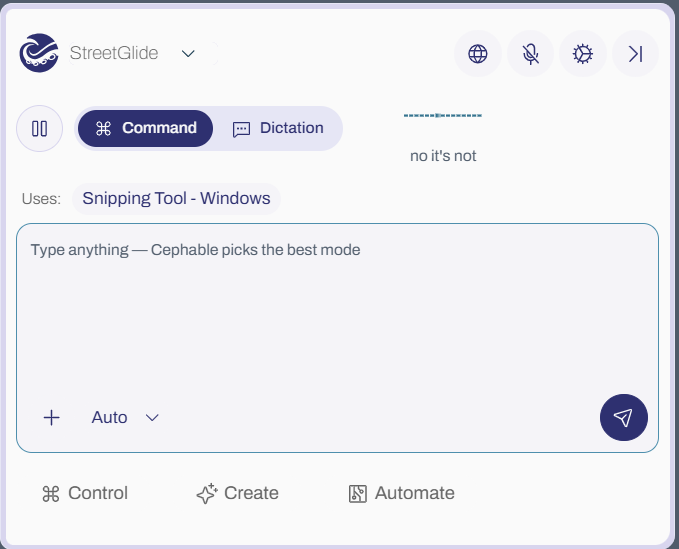
| Turn the microphone on or off | The microphone icon at the top of the Panel. While the microphone is on, the icon has a line through it. |
| Pause and resume listening | The pause button at the left of the row under the Panel header, or Alt+X (Option+X on a Mac). The row appears once the microphone is on. |
| Switch between commands and dictation | Command and Dictation, next to the pause button |
| See what Cephable heard | The text beside the sound wave. It says Listening... until you speak. |
| See which App Controls are active | The name after Uses: |
| Choose a microphone, or start it automatically | In the Cephable Workspace, Settings → Connection → Microphone Settings |
Nothing is being heard
Look at the area just under the Panel header and find what it shows:
| What the Panel shows | What it means | What to do |
|---|---|---|
| No pause button and no Command / Dictation buttons | The microphone is off | Click the microphone icon at the top of the Panel |
| Checking microphone permissions... or Loading Voice Model... | It is still starting | Wait for Listening... to appear |
| Voice paused... | Listening is paused | Click the play button at the left of that row, or press Alt+X (Option+X on a Mac) |
| No microphone access | Cephable cannot use a microphone | Follow Allow microphone access below |
| Listening..., but your words never appear | It is listening to the wrong microphone, or the microphone is muted | Follow Choose the right microphone below |
In the Cephable Workspace, open Settings → Connection → Microphone Settings and turn on Auto Start Microphone.
Allow microphone access
No microphone access means Cephable does not have permission. It also appears when no microphone is connected at all, so check yours is plugged in first.
- 1
Open the microphone privacy settings
Click Open Settings under the No microphone access message in the Panel. System Settings opens at Privacy & Security → Microphone.
- 2
Turn Cephable on
Find Cephable in the list and turn its switch on.
- 3
Turn the microphone off and on
Back in the Panel, click the microphone icon to turn it off, then click it again to turn it on. Cephable checks permission each time the microphone starts. If No microphone access is still showing, quit Cephable fully and open it again.
The message in the Panel says System Settings, which is the Mac name. On Windows there is no button, so go there yourself:
- 1
Open the microphone privacy settings
Open Start → Settings → Privacy & security → Microphone.
- 2
Turn on both switches
Microphone access and Let desktop apps access your microphone must both be on. The second one is further down the page and easy to miss.
- 3
Turn the microphone off and on
Back in the Panel, click the microphone icon to turn it off, then click it again to turn it on. Cephable checks permission each time the microphone starts.
Choose the right microphone
If the Panel says Listening... but your words never appear, Cephable is probably listening to a different microphone from the one you are speaking into.
- 1
Check the microphone is not muted
Many headsets and USB microphones have a mute button or switch. Make sure it is off.
- 2
Open Microphone Settings
Click the gear icon at the top of the Panel and choose Advanced Settings. Or open the Cephable Workspace and choose Settings in the sidebar. Then, in the menu on the left, choose Connection → Microphone Settings.
- 3
Pick your microphone by name
Open the Microphone list and choose the microphone you are using, rather than System default. Cephable remembers it and switches back to it whenever it is connected.
- 4
Speak and watch the Panel
Say something. Your words should replace Listening... beside the sound wave.
Other voice problems
It hears me but runs the wrong command.
- 1
Check the right App Controls are active
Look at the name after Uses: in the Panel. The command you said may only exist in a different set. Click the name to open the Control tab, then choose the right set under Current Controls.
- 2
Make the phrase longer and more distinct
Short commands are the least reliable. If two commands sound alike to you, they will to Cephable too, so rename one. See App Controls.
- 3
Turn off Optimistic Faster Voice Controls
In Settings → Connection → Microphone Settings, turn off Optimistic Faster Voice Controls. It is faster but less forgiving, and may trigger the wrong command if you do not say it exactly.
Commands fire when I did not mean them.
- Pause while you talk to other people. Click the pause button in the Panel, or press Alt+X (Option+X on a Mac). Do the same again to resume. Pausing is quicker to undo than turning the microphone off.
- Rename commands that sound like ordinary speech. "Next" fires constantly in conversation; "go next" almost never does.
- Turn off Optimistic Faster Voice Controls in Settings → Connection → Microphone Settings. It may trigger if you do not say commands exactly.
Recognition is slow.
Recognition runs on your own computer, so it competes with your other apps for the processor. When Cephable notices, a warning icon appears at the right of the Panel's voice row. Hover over it to read High latency detected. Consider closing some applications that might be consuming too many resources.
- Close other apps doing video or AI work.
- On a laptop, plug in or turn off battery saver, which can slow the processor down.
Cephable switched my voice language to English.
If you use a voice language other than English (US) and Cephable cannot download it, the Panel says it couldn't load that language and is using English (US) instead.
- Click Continue to keep using English (US) for now.
- Check your internet connection.
- Quit Cephable fully and open it again. It tries the download again when it starts.
Once a language has downloaded, voice controls work offline.
It works in some apps but not others.
That is usually a permissions problem rather than a recognition one. See Permissions and access.
Still stuck?
Before you contact support lists what to have ready so we can help on the first reply.
Related
Welcome to Cephable
Start with voice on Basic, explore Create as you upgrade, and put Automate, voice, and dictation to work on Pro.
Voice commands
Say a phrase and Cephable acts. How commands are matched, and the settings that make recognition reliable.
Cephable on mobile
The iOS and Android apps act as a companion controller for a device running Cephable.