
Setting up mobile controls
Grant permissions, arrange quick actions, and use the phone's camera and microphone for a connected device.
Permissions
The microphone and camera are requested the first time you use each. Grant them from inside the app so the prompt is attached to the feature you are turning on.
If you declined a prompt earlier, the app cannot ask again — re-enable it under Settings → Cephable on the device.
Permissions are granted per feature under Settings → Apps → Cephable → Permissions.
If the connection or camera stops when you switch apps, exempt Cephable from battery optimization.
Quick action buttons
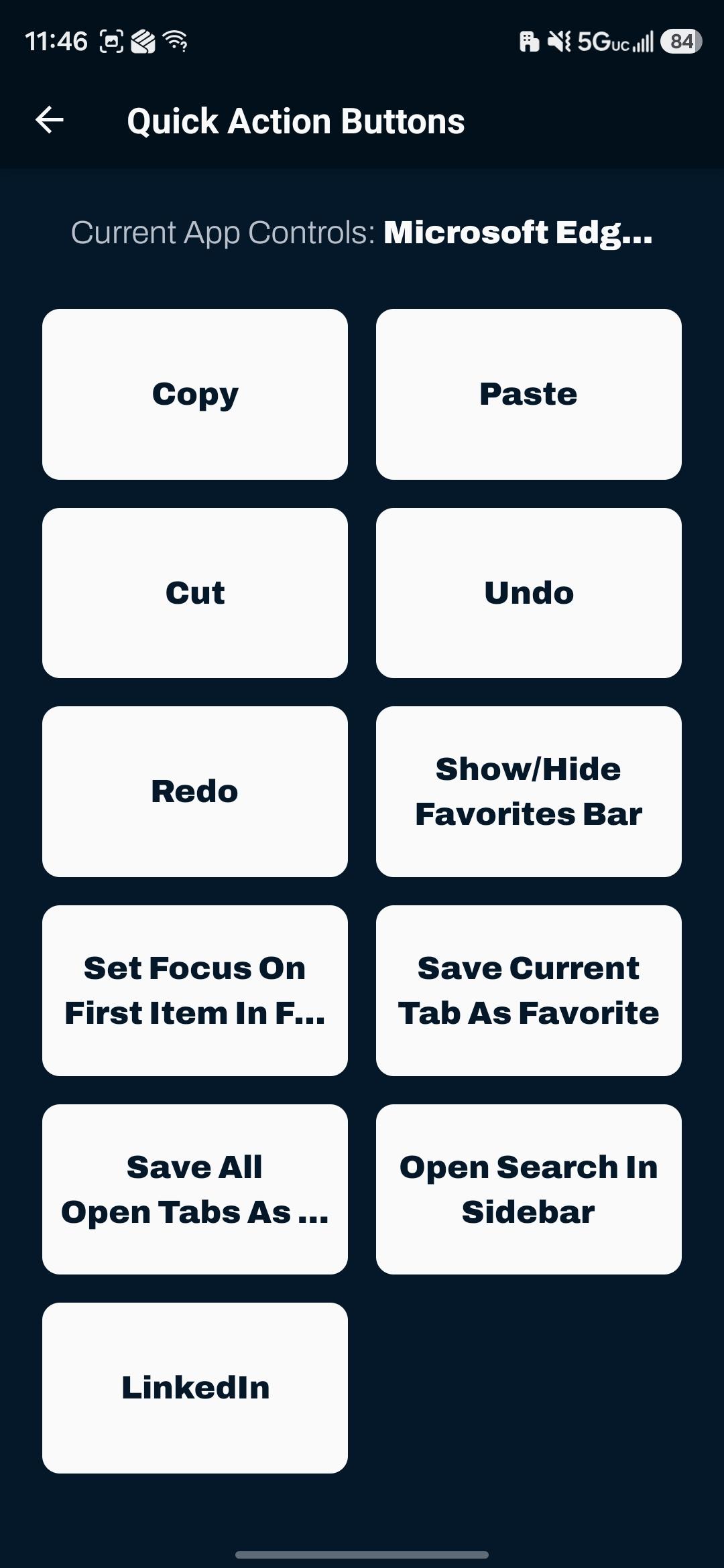
This is what most people use the mobile app for: your pinned actions from the connected device, large enough to hit reliably.
- 1
Pin controls on the computer
Add controls to your quick action buttons in the desktop app.
- 2
Open the device on your phone
The same buttons appear once the device is connected.
- 3
Arrange them for reach
Put the ones you use most where your thumb naturally lands.
Using the phone's camera
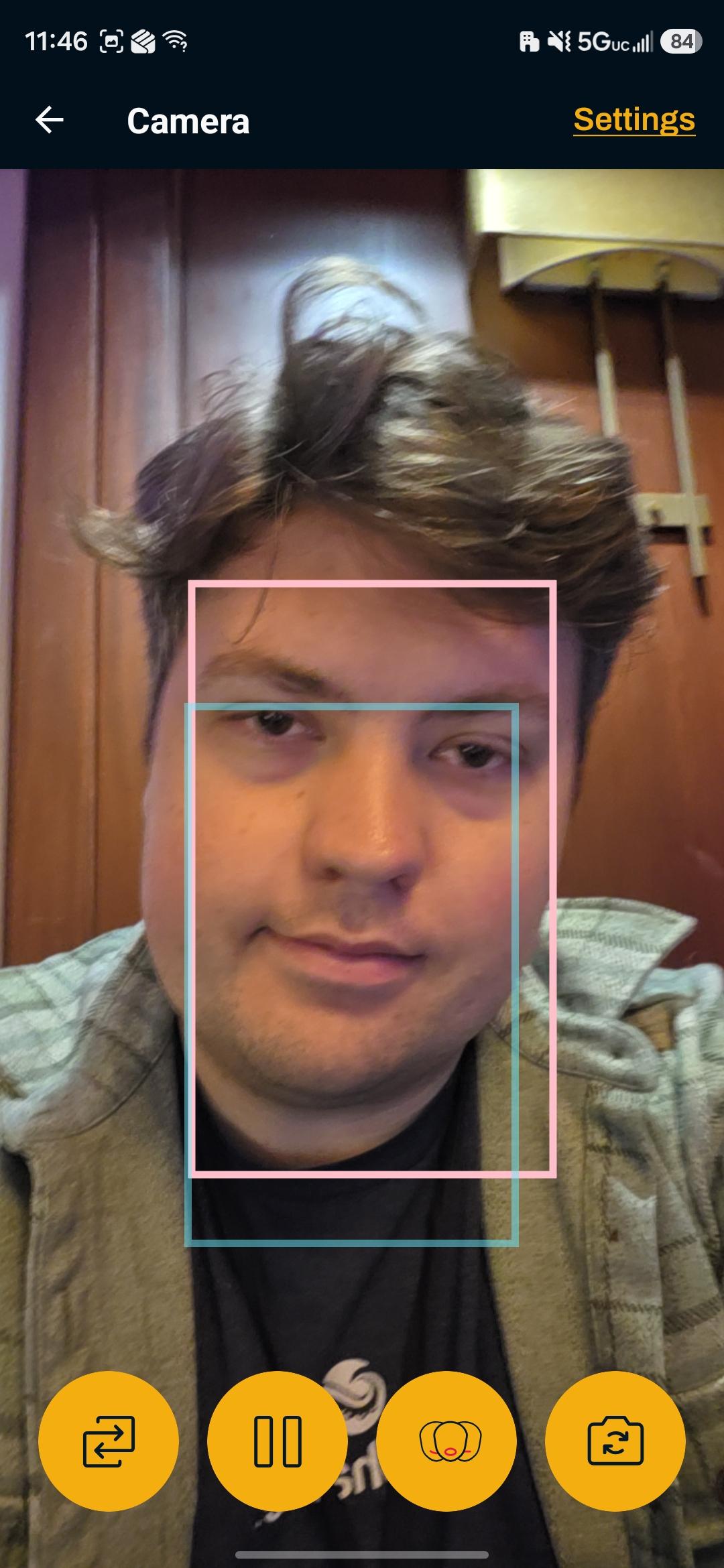
The phone's front camera can provide head and face input for the connected device.
- Prop the device up. Handheld tracking fights every small hand movement.
- Expect battery cost. Continuous camera use is the biggest drain — plan on charging during long sessions.
The same baseline and sensitivity ideas apply as on the desktop — see Head and face controls.
Using the phone's microphone
The microphone screen works the same way as on the desktop: start listening, and what you say is matched against the connected device's App Controls.
Using the phone as the microphone is useful when the computer is across the room, or when a headset is easier to position near your mouth than the computer's built-in microphone.
Switching App Controls
The App Controls selector changes which set the connected device is using — handy when you are away from the keyboard and the automatic switch has picked the wrong one.
Related
Cephable on mobile
The iOS and Android apps act as a companion controller for a device running Cephable.
Cephable alongside platform accessibility
How the mobile app fits with the accessibility features already built into iOS and Android.
Voice commands
Say a phrase and Cephable acts. How commands are matched, and the settings that make recognition reliable.