# Create — dictate, generate, rewrite, translate
> Draft, rewrite, reformat, and translate right inside the app you are working in, using highlighted or clipboard text.
Source: https://help.cephable.com/docs/using-cephable/create
Video: https://www.youtube.com/watch?v=ppi7cWqvPAY
---
**Create** is the second of Cephable's three modes. It works on text where you already are —
the app you are in, the text you have highlighted, or what is on your clipboard.
## Dictation
Dictation types what you say into whatever application has focus. Start it from the
**Dictation** card on the Workspace, from the Panel, or by mapping it to a control so you
can start it hands-free. From any app, the **Toggle Dictation Mode** shortcut —
Alt + D, or Option + D on a Mac — starts or pauses
it. Change the shortcut in **Settings → Global Shortcuts**.
Basic dictation is included on the free plan.
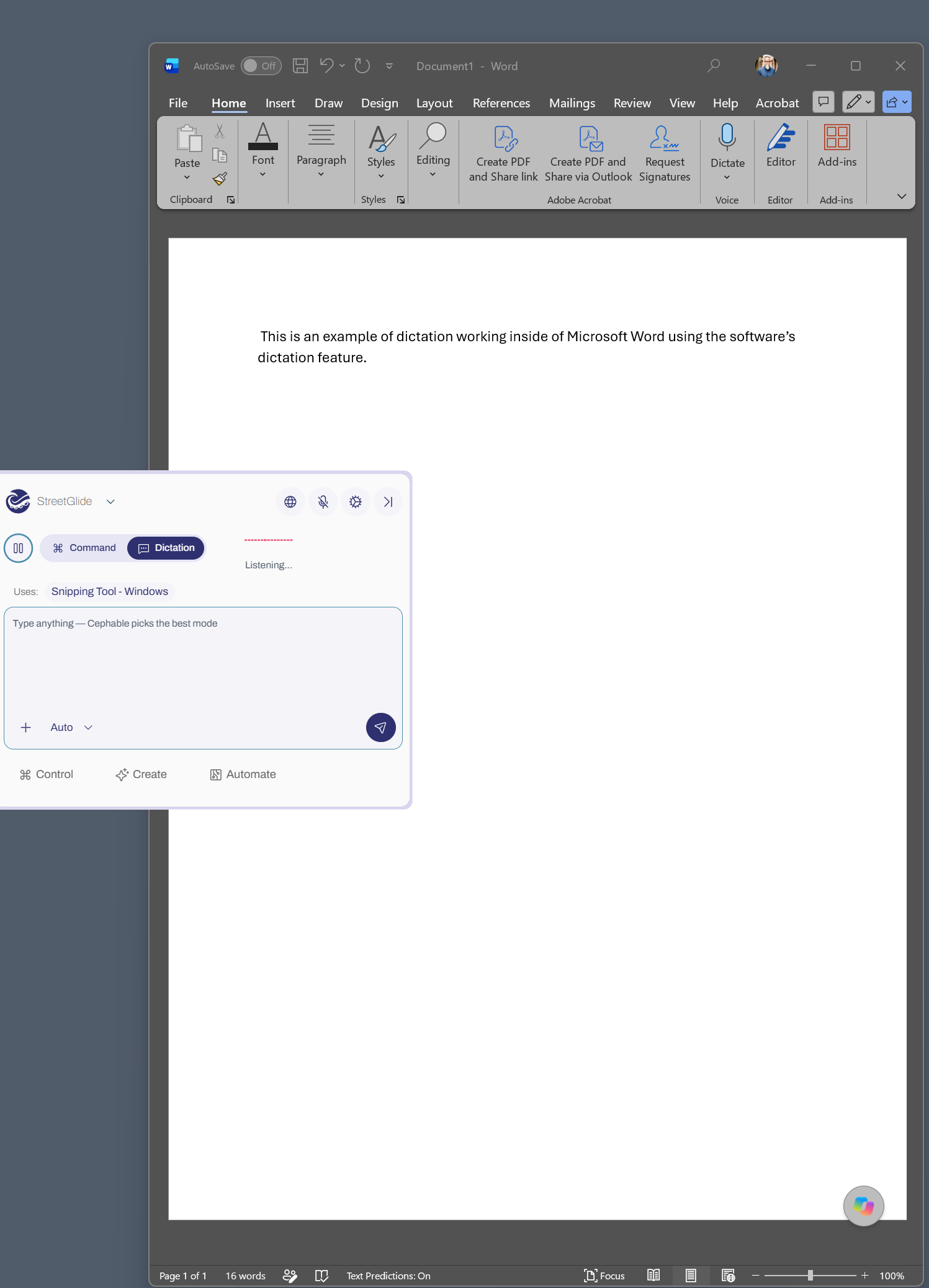
_Dictation_
## Hold to dictate
Hold to dictate is the quickest way to say a sentence or two into a field without switching
modes. It is on by default, on every plan.
:::steps
:::step title="Click into the field you want to type in"
Cephable types into the field you started in.
:::
:::step title="Hold Alt, and nothing else"
On a Mac, hold Option. After a moment dictation starts and the Panel shows
**Listening...**.
:::
:::step title="Talk, and keep holding"
Say everything you want typed.
:::
:::step title="Let go"
Cephable transcribes what you said and types it all at once.
:::
:::
Pressing any other key or clicking before dictation starts cancels the hold, so your usual
Alt shortcuts keep working.
Change how it works in **Settings → Connection → Dictation**:
| Setting | Default | What it changes |
| --- | --- | --- |
| Hold to dictate | On | Turns the feature on or off |
| Keys to hold | Alt (Option on a Mac) | Any combination of modifier keys |
| Hold time | 1.5 seconds | How long to hold before dictation starts, from 0.5 to 3 seconds |
With **Intelligent Dictation and Quick Type** turned on, hold to dictate uses the same
AI-enhanced recognition. On a Mac it needs **Device Control and Data Access** permission
(**Accessibility** on macOS 26 and earlier) to see the keys; until it has it, Settings shows
**Hold to dictate is waiting for permission**.
## What Create does with your text
Set the composer to a Create mode, or leave it on Auto and just say what you want.
| Mode | Works on | Result |
| --- | --- | --- |
| Generate | Nothing — you describe it | New text, written where you are |
| Summarize | Your selection | A summary |
| Rewrite | Your selection | A rewritten version, replaced in place |
| Translate | Your selection | A translation |
Rewrite, Summarize, and Translate need something to work from, so the composer asks you to
pick a context source first: **highlighted text**, the **clipboard**, or the **current app**.
It also shows where the result will go — the app it will type into.
:::callout type="tip" title="Highlight, then ask"
The usual rhythm is: highlight a paragraph, open the Panel, say what you want done to it.
The context row confirms what it is reading and where it will type before you commit.
:::
## Intelligent dictation and Quick Type
> **This section is included with Cephable Plus.**
>
> Cephable Plus adds AI-enhanced dictation — automatic punctuation, proper nouns, and sentence structure — plus Quick Type, so you can say 'type …' to insert text without switching modes.
## AI rewrite for long dictation
> **This section is included with Cephable Plus.**
>
> Cephable Plus can rewrite long dictation before it is typed — cleaning up filler words and corrections, following directions like 'email Sam' or 'make that a list', and formatting it for the app you are in. It runs on the on-device model.
## Generate, rewrite, summarize, and translate
> **This section is included with Cephable Plus.**
>
> AI content generation, rewriting, and translation are included with Cephable Plus — running on the on-device model, so the document never leaves your machine.
## Where the text goes
Cephable types into whichever application has focus, the same way a keyboard does. That is
why it works across desktop applications with no per-app integration — and equally why an
application that does not accept normal keyboard input will not accept this either.
### When there is nowhere to type
If no text field has focus when Cephable is ready to type, or focus moves while it is
typing, Cephable keeps the text instead of losing it. A **Background Content** button
appears in the Panel with a count of what it is holding. Open it to search, copy, or
dismiss entries. They last until you quit Cephable.
To put the newest entry into a field, click into the field and say **"paste last entry"**
— or "paste recent entry", "paste last dictation", or "paste background content". Pasting
goes through your clipboard, so anything you had copied is cleared.
## Watch it in practice
[Video: Hands-free typing and document creation](https://www.youtube.com/watch?v=ppi7cWqvPAY)
## Getting the most out of Create
**Select precisely.** Rewrite and Translate work on what you highlighted. Highlighting a
whole document and asking to "tighten this up" gives a worse result than doing it a paragraph
at a time — and takes longer.
**Say the outcome, not the method.** "Make this sound less defensive" works better than
"change some words". The model is deciding how; you are deciding what.
**Use suggested prompts for repeated work.** A set of App Controls can carry suggested
generate and rewrite prompts, so the phrasings that suit a particular app are there when you
are in it.
**Put house style in a skill.** If you find yourself repeating "keep it under 100 words, no
exclamation marks, British spelling", that belongs in a
[skill](/docs/using-cephable/automate/skills), not in every prompt.
**Check before you accept.** Generation runs on a local model, which is what keeps your
document private — and means it is smaller than a datacenter one. Read the output.
:::faq title="Common questions"
:::question title="Cephable is hearing me but not typing what I say."
You are in command mode, where speech is matched against your controls instead of typed.
Press the **dictation** icon in the Panel, or say **"dictate"** to switch. For something
short, stay where you are and say **"type"** followed by the text.
:::
:::question title="Which is better — dictation or Quick Type?"
Dictation mode for anything longer than a sentence — it stays on until you stop it.
Quick Type for filling a field mid-task, where switching modes costs more than the typing
saves.
:::
:::question title="Can I undo a rewrite?"
Yes. A rewrite lands as one edit as far as the host app is concerned, so Ctrl +
Z brings your original text back.
:::
:::question title="Why is generation slow on my machine?"
It runs on your device, so it competes with everything else you have open. Close other
demanding applications, and note that it performs meaningfully better on newer hardware.
Turn on **Automatically Warm Up Text Generation** in Text Generation Settings to load the
model when Cephable starts, so the first request of a session does not wait for it.
:::
:::question title="Does my document get sent anywhere?"
No. All of it runs on the on-device model — the text you are working on stays on your
computer.
:::
:::
## Next
- [Voice commands](/docs/using-cephable/voice-commands) — Control mode
- [Automate](/docs/using-cephable/automate) — multi-step jobs