# Your first App Controls
> Build a set of controls for one app you use constantly, with three actions you repeat every day.
Source: https://help.cephable.com/docs/get-started/first-profile
---
**App Controls** are a named set of commands Cephable listens for. Cephable switches between
sets as you move between applications, so "next" can mean one thing in your email client and
something else in a video editor.
:::callout type="tip" title="Start with three"
The most common mistake is building forty commands on day one and remembering none of them.
Pick three things you do dozens of times a day. Add more once those three are automatic.
:::
## Create a set
:::steps
:::step title="Open Manage App Controls"
From **Manage App Controls**, choose **Create App Controls**. You can start
from scratch or have Cephable generate a starting set.
:::
:::step title="Name it after the app"
"Outlook", "Figma", "Chrome" — so you can tell at a glance which is active.
:::
:::step title="Choose the program it is for"
Under **Associated Programs**, start typing the app's name and pick it from the list.
Cephable switches to this set whenever that app comes to the foreground.
If the app is not in the list, type its name as it appears in your Start menu or
Applications folder and press Enter to add it. Web apps run inside your browser,
so for something like Gmail in Chrome, add the browser — the set is then active on every
site you open in it.
This step is optional. A set with no associated program is used only when you pick it
yourself, under **Current Controls** on the Panel's **Control** tab. If saving shows
**Empty Associated Program detected**, remove the blank entry and save again.
:::
:::step title="Add your first control"
Add a control, type the phrase you want to say, and choose what it should do. Start with a
keyboard shortcut you already know.
:::
:::
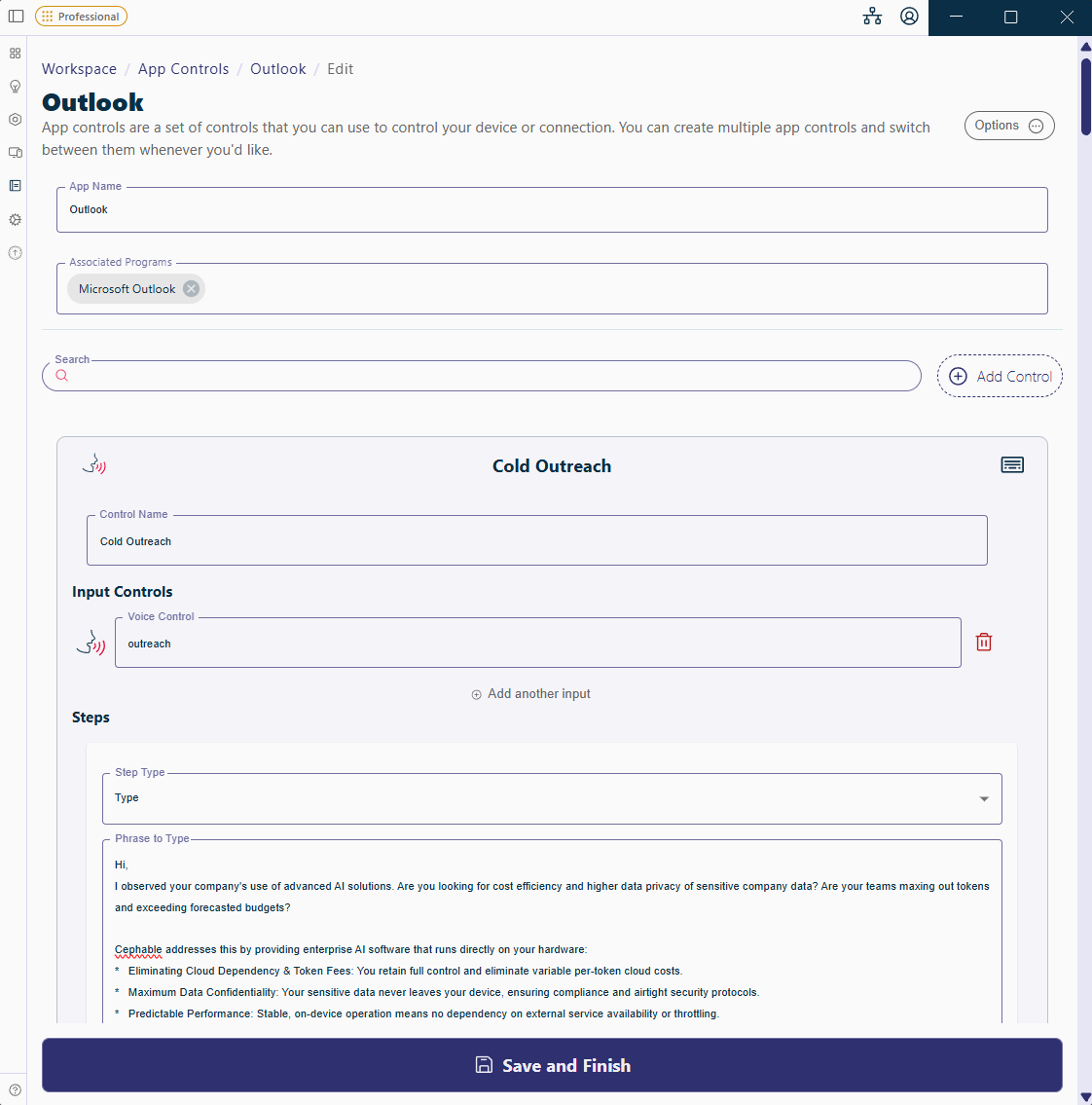
_Adding a control_
## Three to start with
| Say this | It does | Why |
| --- | --- | --- |
| "next field" | Presses Tab | Forms and dialogs, without reaching for the keyboard |
| "send it" | Presses Ctrl + Enter | The action you repeat most in mail and chat |
| "go back" | Presses Alt + Left | Browser and file-manager navigation |
## Choosing phrases that work
- **Two or three syllables.** "Send it" is matched more reliably than "send".
- **Distinct from each other.** "Next" and "text" will be confused; "next field" and "type
text" will not.
- **Words you would not say by accident.** Avoid phrases that turn up in normal conversation
if you dictate in the same application.
## Pin to favorites
Every control in your active App Controls appears as a button on the Panel's **Control** tab,
and selecting one runs it. Select the star on a control to make it a favorite, then choose
**Favorites** to show only those.
Favorite the controls you use most, the ones whose phrase you are still learning, and the
ones that are buried in the app's menus. A favorite is one tap away by pointer, touch, or
switch, whether or not you remember what to say.
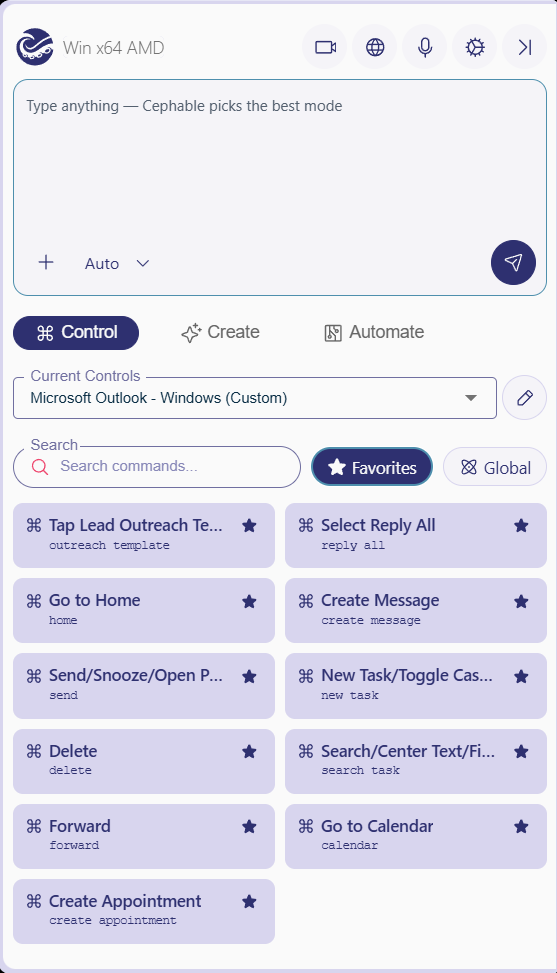
_Favorites on the Control tab_
## Watch the command feed while you learn
The command feed shows each control as it fires and what it sent to your computer. Leave it
on for the first few days — when a phrase does not work, it tells you whether Cephable
misheard you or the action was wrong.
## Next
- [App Controls in depth](/docs/using-cephable/app-controls) — macros, sharing, and switching
- [Voice commands](/docs/using-cephable/voice-commands) — making recognition reliable
- [Create](/docs/using-cephable/create) — dictation and AI text tools
- [Automate](/docs/using-cephable/automate) — multi-step jobs with Pro